Ta strona korzysta z plików cookie, aby poprawić komfort użytkowania. Dowiedz się więcej o tym, jak korzystamy z plików cookie, w naszej Polityce prywatności.

Szukaj
Strona Główna Gry Wydarzenia Pomoc techniczna
Polski
English Español Français Deutsch 中文 國語 日本語
Zarejestruj się &Zdobądź 100 sztuk GoldLogowanie
Menu
Gry
Tagi
Ulubione
Gold
Wsparcie
Inny
Zamknij
Strona Główna Gry Wydarzenia Pomoc techniczna
Polski
English Español Français Deutsch 中文 國語 日本語
Preferencje treści
Zaloguj się, aby dostosować swoje preferencje.

Filtruj gry według rodzaju treści:

  • Gry PC
  • Darmowe gry przeglądarkowe
  • Darmowe gry PC
  • Gry Premium
  • Nowe gry na PC
  • Gry PC z wczesnym dostępem
  • Wyprzedaż gier na PC
  • Oferty i wydarzenia
  • Najwyzej w rankingu
  • Najnowsze
  • Wkrotce zakonczenie
  • Gry mobilne
  • Gry na Androida
  • Gry mobilne z wczesnym dostępem
  • Popularne gatunki
  • RPG
  • Powieść wizualna
  • Przygoda
  • Kliker
  • Symulacja
  • Sim randkowy
  • Puzzle
  • Strategia
  • Walka
  • ZOBACZ WSZYSTKIE GATUNKI
  • Popularne znaczniki
  • Nieocenzurowane
  • do grania za darmo
  • Anime
  • Fantasy
  • Potwór
  • 3D
  • Western
  • Bohater żeński
  • VR
  • Smok
  • ZOBACZ WSZYSTKIE TAGI
  • UlubioneZarządzaj
Kliknij serce, aby dodać grę do ulubionych
Ulubione gry będą wyświetlane tutaj
Zarządzaj ulubionymi grami na stronie profilowej
Wyświetl bibliotekę gier
Wybierz swoja ulubiona gre i zacznij grac juz teraz!
Wyswietl wszystkie ulubione gry
  • Kontakt wsparcie
  • Płatność
  • Konto
  • Rozgrywka
  • Aby uzyskać wsparcie lub przesłać opinię, skontaktuj się z nami przez Discord

    Discord
  • Często zadawane pytania
  • Spis
  • Poleceni użytkownicy
  • Spędź czas z nami:
  • Discord
  • Twitter
  • Facebook
  • Youtube
  • Instagram
  1. Strona Główna›
  2. Action RPG,Roguelike›
  3. cyber security
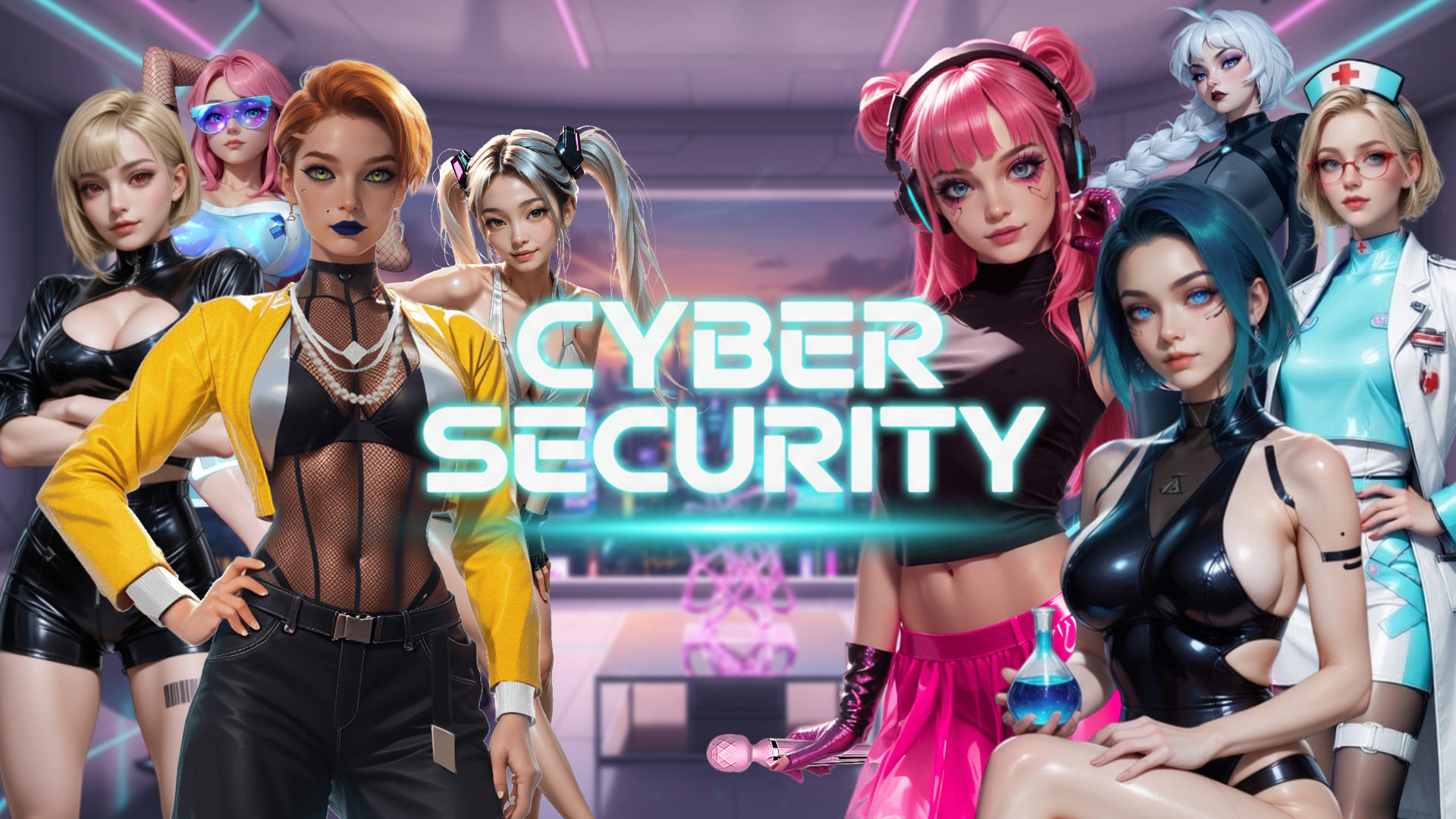
Cyber Security - Przygodowa akcji Gra
Gra z wczesnym dostepem
Pobierz plik APK na system Android (Plik APK)Install on iOS device (IPA file)Dodaj do ulubionych

Cyber Security

Wydawca: Naughty Nation

Twórca: Naughty Nation

  • action-adventureGra - Cyber Security
  • action-adventureGra - Cyber Security
  • action-adventureGra - Cyber Security
  • action-adventureGra - Cyber Security
  • action-adventureGra - Cyber Security
action-adventureGra - Cyber Securityaction-adventureGra - Cyber Securityaction-adventureGra - Cyber Securityaction-adventureGra - Cyber Securityaction-adventureGra - Cyber Security

* Bezpłatne gry mogą obejmować zakupy w aplikacji.

Na zywo
Cyber Security Event
Wydarzenie konczy sie za:
:::
Gatunek
Przygodowa akcjiAction RPGRoguelike
Tagi
3D AkcjaPrzygodaSeks animowanyBitwa samochodowaDuże cyckKolekcjaUroczePodziemna labiryntówkaEksploracjaFantasyBohater żeńskido grania za darmoHaremBezczynnośćZawiera aplikację na AndroidaNa komórkęNagość
Dostępne na platformie
Android iOS Przeglądarka PC Przeglądarka telefonu
Informacje o grze
  • Języki:
    Niemiecki, Rosyjski, Portugalski (Brazylijski), Japonski, Portugalski, Angielski, Chinese (Simplified), Francuski, Hiszpański, Turecki
Portale społecznościowe
Discord — dołącz do dyskusji
JęzykPolski
English Español Français Deutsch 中文 國語 日本語
  • Gry Nutaku
  • Darmowe gry PC
  • Platne gry PC
  • Darmowe gry Android
  • Darmowe gry iOS
  • Oferty i wydarzenia
  • Współpraca z nami
  • Poleceni użytkownicy
  • Pomoc techniczna
  • Często zadawane pytania
  • Wsparcie płatności
  • Wsparcie dotyczące konta
  • Wsparcie dotyczące gry
  • Subskrypcja
  • Dostępność
  • Content removal
  • Odkryj
  • Katalog
  • Sklep z gadżetami
  • Kup Hentai Hot Sauce
Język
Polski
English Español Français Deutsch 中文 國語 日本語
RegulaminPolityka prywatnościInformacje regulacyjne
Informacje regulacyjneRecommender System GuidelinesUstawienia plików cookie

© 2026 Nutaku Entertainment Ltd – All Rights Reserved.

Trademarks owned by Licensing IP International S.a.r.l. used under license by Nutaku Entertainment Ltd.

Modelki i modele na tej stronie mają ukończone 18 lat. Dostęp do wymaganej dokumentacji zgodnie z Oświadczeniem o Zgodności z Wymaganiami Dotyczącymi Prowadzenia Ewidencji 18 U.S.C. 2257. Wchodząc na tę stronę, deklarujesz, że jesteś w wieku wymaganym przez lokalne prawo, aby oglądać materiały dla dorosłych, i że chcesz zobaczyć takie materiały.

Szukaj na stronie Nutaku wg tytułu gry, gatunku lub znacznika

Ups! Brak wyników dla ""

Spróbuj jeszcze raz, wojowniku hentai! Coś poszło nie tak. Sprawdź poprawność pisowni lub poszukaj czegoś innego

Cyber SecurityCyber Security
Just want to download game installation file?Download Game File (IPA File)
Select Installation Methods
SideStore
AltStore
Sideloadly
Quick Install
Download FilesDownload FilesVideo InstructionVideo StepsText InstructionText StepsFAQFAQ
View instructions for:PCMac

Download Requires a Computer

The files can only be downloaded using a computer.
Please switch to your desktop or laptop to continue the download process. Check the Video or Text Instruction tab for more details.

Text Instruction

What is SideStore and system requirements

The SideStore enables non-jailbroken iOS devices the ability to install apps manually, giving you access to NSFW games that aren’t available in the app store.
The following sections will guide you on the required files that need to be downloaded and installed, as well as step-by-step instructions on how to set up the SideStore and how to install apps on your device. Note that once you have completely set up the SideStore, future installations will only require you to download the Game Installation File (.IPA) and to carry out the game installation steps.
Please note that in order to follow this guide you will need access to a macOS (10.14 or higher) or Windows (10 or higher) computer.

Install iTunes and iCloud

  • Run iTunes’ installer and follow its instructions.
  • Once the installation is complete, if you’re asked to restart your computer, select “No”.
  • If you're asked to install iCloud select "No" and use the installer from our Files section instead.
  • Run iCloud’s installer and follow its instructions.
  • Once the installation is complete, if you’re asked to restart your computer, select “No”.
  • iCloud should immediately launch and be accessible on your system’s tray. Click on it and select “Sign In”.
  • Enter your Apple ID credentials.
    • Note: these should be the same credentials you’re using on your iOS device.
  • After Signing in, select “iCloud Drive” and confirm your selection with the “Apply” button.
  • Your iCloud Drive will then be synced with your device.
  • Once it finishes syncing, restart your computer.

Connect your device to your computer and enable Developer Mode

  • Connect your iOS device to your computer using a physical cable.
  • On your device, go to “Settings”.
  • Scroll down to the end of the page, and select “Privacy and Security”.
  • Scroll down to the end of the page, and select “Developer Mode”.
  • Touch the Developer Mode toggle to enable it.
  • When prompted to restart your device, select “Restart” to finish enabling it.
  • If Developer Mode won’t turn on or can’t be found, it usually means your iPhone isn’t properly paired.
    • First, download the iDevice Pair file by clicking here.
    • Connect your iPhone to your PC and run the iDevice Pair file by following the instructions here to generate and validate a pairing file.
  • Once the pairing file is created, you should be able to enable Developer Mode by following the instructions above and proceed with the remaining steps.

Install and Launch the SideStore on your device

  • Extract the AltServer files into any folder of your computer.
  • Run the “Setup” file of the AltInstaller and follow its instructions.
  • Upon completion, the “AltServer” should be installed on your device.
  • Launch the AltServer.
    • You can quickly find it on your Recently Added section of the Start Menu or the folder where you installed it.
  • AltServer will be displayed on your system’s tray. Holding the “Shift” key, click on its icon and go to “Sideload .ipa” and select your device from the list.
  • Browse your computer and select the “SideStore.ipa” file.
  • When prompted, enter your Apple ID and password and select “Install”.
  • The SideStore will start being installed on your iOS device.
  • Before you can launch the SideStore, you must trust the developer (your Apple ID). To do that, on your iOS device do the following:
    • Go to Settings and select “General”
    • Scroll down and select “VPN & Device Management”.
    • Select your Apple ID email from the list.
    • Select to Trust your email.
    • When prompted about allowing Apps from your email, select “Allow”.
    • If trusting the developer doesn’t work, please restart your iPhone and try again.

Create and Import the Pairing File

  • On your computer, run the iDevice Pair file to assist you with the process.
  • If prompted by Windows, select “More Info” and then the “Run Anyway” button.
  • If prompted by Windows Defender Firewall, select “Allow Access”.
  • On the top left, select your device from the dropdown list.
  • At this step you may see “Load” or “Generate”.
    • If the “Generate” button appears, select Generate.
      • On your iOS device, tap “Trust”, then enter your device’s passcode.
      • The iDevice Pair program will generate a pairing file.
    • If only the “Load” button appears, simply select Load which should display pairing text and “Install”.
  • Scroll down and select “Install” to add the pairing file to your device.
  • Once you see the green success message, SideStore has been successfully installed and paired.
    • Note that you do not need to repeat this process every time you want to launch the SideStore.

Download and connect to SideStore’s VPN (LocalDevVPN)

  • Launch Apple’s App Store.
  • Search for “LocalDevVPN” and install it.
  • Launch LocalDevVPN and complete the setup.
  • On the main app’s screen, select the “Connect” button.
  • Select “Allow” and enter your device’s password if prompted.
  • You should see a green “Connected” message on LocalDevVPN if all steps were performed correctly.
    • This VPN only needs to be connected during the initial SideStore setup and can be turned off once the game has been installed.

Installing Nutaku Games Via the SideStore

  • Download the Game Installation File (.IPA) from Nutaku.
  • Upload the game to your iCloud account.
    • You can easily do that by dragging and dropping the file into the iCloud folder available in your computer.
    • Make sure you’re using the same iCloud account on both your computer and iOS device.
  • Once the game has been uploaded, launch the SideStore on your iOS device.
    • If you get “Developer not trusted” when launching the app, you can fix this error by following the last step mentioned in the “Install and Launch the SideStore on your device” section.
  • In the app, select the Settings tab.
  • Select “Sign in with Apple ID”. Make sure to Sign in with the same account signed in your device.
  • If prompted to revoke previous SideStore certificates, select “Yes”.
  • If prompted to refresh SideStore, select “Refresh Now”.
  • When prompted about App Extensions, select “Remove App Extensions”.
  • Once you have completed your Sign In, the SideStore may close. Wait for it to fully update, and then launch it again.
  • In the SideStore, head to the “My Apps” tab.
  • Select the + Icon in the top left corner.
  • Select your recently uploaded game file from the file list.
    • Make sure the file selector on your device is set to “iCloud Drive” to be able to find the file.
  • After a brief moment of time, the game should be displayed in your My Apps list and the game will be installed on your iOS device.
  • You can return to your main app list to find the game there ready for launch!

Download Requires a Computer

The files can only be downloaded using a computer.
Please switch to your desktop or laptop to continue the download process. Check the Video or Text Instruction tab for more details.

Text Instruction

What is SideStore and system requirements

The SideStore enables non-jailbroken iOS devices the ability to install apps manually, giving you access to NSFW games that aren’t available in the app store.
The following sections will guide you on the required files that need to be downloaded and installed, as well as step-by-step instructions on how to set up the SideStore and how to install apps on your device. Note that once you have completely set up the SideStore, future installations will only require you to download the Game Installation File (.IPA) and to carry out the game installation steps.
Please note that in order to follow this guide you will need access to a macOS (10.14 or higher) or Windows (10 or higher) computer.

Install AltServer on your Computer

  • Download and extract the SideStore’s files on your computer.
  • Install and launch the AltServer.
  • Once installed, it should be displayed on your navigation bar.

Connect your device to your computer and enable Developer Mode

  • Connect your iOS device to your computer using a physical cable.
  • On your device, go to “Settings”.
  • Scroll down to the end of the page, and select “Privacy and Security”.
  • Scroll down to the end of the page, and select “Developer Mode”.
  • Touch the Developer Mode toggle to enable it.
  • When prompted to restart your device, select “Restart” to finish enabling it.
  • If Developer Mode won’t turn on or can’t be found, it usually means your iPhone isn’t properly paired.
    • First, download the iDevice Pair file by clicking here.
    • Connect your iPhone to your Mac and run the iDevice Pair file by following the instructions here to generate and validate a pairing file.
  • Once the pairing file is created, you should be able to enable Developer Mode by following the instructions above and proceed with the remaining steps.

Install and Launch the SideStore on your device

  • On your navigation bar, click on AltServer’s icon.
  • Hover the “Install AltStore” option, and hold “Option” on your keyboard to change it to “Sideload .ipa”. Then select your phone from the list.
  • Select the SideStore.IPA file from your computer.
  • When prompted, enter your Apple ID and password and select “Install”.
  • The SideStore will start being installed on your iOS device.
  • Before you can launch the SideStore, you must trust the developer (your Apple ID). To do that, on your iOS device do the following:
    • Go to Settings and select “General”
    • Scroll down and select “VPN & Device Management”.
    • Select your Apple ID email from the list.
    • Select to Trust your email.
    • When prompted about allowing Apps from your email, select “Allow”.
    • If trusting the developer doesn’t work, please restart your iPhone and try again.

Create and Import the Pairing File

  • On your computer, run the “iDevice Pair” dmg file (idevice_pair--macos-universal.dmg) to assist you with the process.
  • Launch idevice_pair. If prompted to confirm the launch, select “Open”.
  • On the top left, select your device from the dropdown list.
  • If the “Generate” button appears, select “Generate”.
    • On your iOS device, tap “Trust” and enter your device’s password.
    • The iDevice Pair program will generate a pairing file.
  • If the “Generate” button does not appear, that’s fine, your device already has a valid pairing file.
  • Scroll down and select “Validate”. Once validation shows green success, select “Install” to add the file to your device.
  • Once you see the green success text, the SideStore will have been successfully installed and paired.
    • Note that you do not need to repeat this process every time you want to launch SideStore.

Download and connect to SideStore’s VPN (LocalDevVPN)

  • Launch Apple’s App Store.
  • Search for “LocalDevVPN” and install it.
  • Launch LocalDevVPN and complete the setup.
  • On the main app’s screen, select the “Connect” button.
  • Select “Allow” and enter your device’s password if prompted.
  • You should see a green “Connected” message on LocalDevVPN if all steps were performed correctly.
    • This VPN only needs to be connected during the initial SideStore setup and can be turned off once the game has been installed.

Installing Nutaku Games Via the SideStore

  • Download the Game Installation File (.IPA) from Nutaku.
  • Upload the game to your iCloud account.
    • Make sure you’re using the same iCloud account on both your computer and iOS device.
  • Once the game has been uploaded, launch the SideStore on your iOS device.
    • If you get “Developer not trusted” when launching the app, you can fix this error by following the last step mentioned in the “Install and Launch the SideStore on your device” section.
  • In the app, select the Settings tab.
  • Select “Sign in with Apple ID”. Make sure to Sign in with the same account signed in your device.
  • If prompted to revoke previous AltStore certificates, select “Yes”.
  • If prompted to refresh SideStore, select “Refresh Now”.
  • When prompted about App Extensions, select “Remove App Extensions”.
  • Once you have completed your Sign In, the SideStore may close. Wait for it to fully update, and then launch it again.
  • In the SideStore, head to the “My Apps” tab.
  • Select the + Icon in the top left corner.
  • Select your recently uploaded game file from the file list.
  • After a brief moment of time, the game should be displayed in your My Apps list and the game will be installed on your iOS device.
  • You can return to your main app list to find the game there ready for launch!

FAQs: Installing Games with SideStore

  • What is SideStore?
    SideStore is an alternative sideloading tool for iOS. Unlike AltStore, SideStore doesn’t require AltServer to be running on your computer all the time — once it’s paired, you can install apps directly from your iPhone or iPad over Wi-Fi.
  • Why do I need AltServer to install SideStore?
    AltServer is required for the initial installation of SideStore because it’s the only way to sideload apps onto iOS devices without jailbreaking. Once SideStore is installed and paired with your computer (using a pairing file), you no longer need AltServer, SideStore can refresh and install apps directly on your iPhone or iPad over Wi-Fi.
  • What is a pairing file, and why do I need it?
    A pairing file is a small file that links your iPhone/iPad with your computer. It’s required so SideStore can refresh apps over Wi-Fi without needing to plug in every time.
  • Why do I need LocalDevVPN?
    SideStore uses a specially designed VPN (LocalDevVPN) to “trick” iOS into allowing apps signed with your personal development certificate to be installed and refreshed. The VPN doesn’t route your internet traffic, it only handles the signing and refreshing process.
  • Will the VPN track my activity?
    No. The VPN profile used by SideStore (LocalDevVPN) does not monitor or route your internet traffic. It only exists to allow SideStore to install and refresh your sideloaded apps.
  • I get an error saying “Untrusted Developer”. What should I do?
    On your iPhone or iPad, go to Settings > General > VPN & Device Management, tap your Apple ID under Developer App, and select Trust.
  • How do I get the pairing file?
    You’ll need to use idevice pair (a helper tool on your computer) to generate the pairing file. Once created, you can import it into SideStore on your iOS device.
  • Do I need to re-pair every week?
    No. You only need to generate and import a pairing file once, unless you reset your device or reinstall SideStore.
  • Do I still need a computer after setup?
    Only for the initial pairing and installation of SideStore. After that, you can install and refresh apps directly from your device over Wi-Fi.
  • Why do I need to enter my Apple ID?
    Apple requires apps to be signed with an Apple ID before they can run on iOS. SideStore uses your Apple ID only for signing, it is not shared or stored by SideStore.
  • My app expired after 7 days. Why?
    Free Apple IDs require apps to be refreshed every 7 days. SideStore makes this easier by allowing you to refresh apps directly from your device without reconnecting to a computer.
  • Is the SideStore safe?
    Yes. The SideStore (and AltServer) are trusted open-source tools. They do not pose any harm to your devices, and are only meant to enable the installation of apps on your iPhone or iPad.

Download Requires a Computer

The files can only be downloaded using a computer.
Please switch to your desktop or laptop to continue the download process. Check the Video or Text Instruction tab for more details.

Text Instruction

What is AltStore and system requirements

The AltStore enables non-jailbroken iOS devices the ability to install apps manually, giving you access to NSFW games that aren’t available in the app store.
The following sections will guide you on the required files that need to be downloaded and installed, as well as step-by-step instructions on how to set up the AltStore and how to install apps on your device. Note that once you have completely set up the AltStore, future installations will only require you to download the Game Installation File (.IPA) and to carry out the game installation steps.
Please note that in order to follow this guide you will need access to a macOS (10.14 or higher) or Windows (10 or higher) computer.

Install iTunes and iCloud

  • Run iTunes’ installer and follow its instructions.
  • Once the installation is complete, if you’re asked to restart your computer, select “No”.
  • If you're asked to install iCloud select "No" and use the installer from our Files section instead.
  • Run iCloud’s installer and follow its instructions.
  • Once the installation is complete, if you’re asked to restart your computer, select “No”.
  • iCloud should immediately launch and be accessible on your system’s tray. Click on it and select “Sign In”.
  • Enter your Apple ID credentials.
    • Note: these should be the same credentials you’re using on your iOS device.
  • After Signing in, select “iCloud Drive” and confirm your selection with the “Apply” button.
  • Your iCloud Drive will then be synced with your device.
  • Once it finishes syncing, restart your computer.

Connect your device to your computer and enable Developer Mode

  • Connect your iOS device to your computer using a physical cable.
  • On your device, go to “Settings”.
  • Scroll down to the end of the page, and select “Privacy and Security”.
  • Scroll down to the end of the page, and select “Developer Mode”.
  • Touch the Developer Mode toggle to enable it.
  • When prompted to restart your device, select “Restart” to finish enabling it.
  • If Developer Mode won’t turn on or can’t be found, it usually means your iPhone isn’t properly paired.
    • First, download the iDevice Pair file by clicking here.
    • Connect your iPhone to your PC and run the iDevice Pair file by following the instructions here to generate and validate a pairing file.
  • Once the pairing file is created, you should be able to enable Developer Mode by following the instructions above and proceed with the remaining steps.

Install and Launch the AltStore on your device

  • Extract the AltStore files into any folder of your computer.
  • Run the “Setup” file of the AltInstaller and follow its instructions.
  • Upon completion, the “AltServer” should be installed on your device.
  • Launch the AltServer.
    • You can quickly find it on your Recently Added section of the Start Menu or the folder where you installed it.
  • AltServer will be displayed on your system’s tray. Click on it and go to “Install AltStore” and select your device from the list.
  • When prompted, enter your Apple ID and password and select “Install”.
  • The AltStore will start being installed on your iOS device.
  • Once the AltStore is installed, on your iOS device do the following:
    • Go to Settings and select “General”
    • Scroll down and select “VPN & Device Management”.
    • Select your Apple ID email from the list.
    • Select to Trust your email.
    • When prompted about allowing Apps from your email, select “Allow”.
    • If trusting the developer doesn’t work, please restart your iPhone and try again.
  • Once these steps are completed, the AltStore should be fully set up and ready to be launched.

Installing Nutaku Games Via the AltStore

  • Download the Game Installation File (.IPA) from Nutaku.
  • Upload the game to your iCloud account.
    • You can easily do that by dragging and dropping the file into the iCloud folder available in your computer.
    • Make sure you’re using the same iCloud account on both your computer and iOS device.
  • Once the game has been uploaded, launch the AltStore on your iOS device.
    • If you get “Developer not trusted” when launching the app, you can fix this error by following the eight step mentioned in the “Install and Launch the AltStore on your device” section.
  • In the app, select the Settings tab.
  • Select “Sign in with Apple ID”. Make sure to Sign in with the same account signed in your device.
  • Once you have completed your Sign In, head to the “My Apps” tab.
  • Select the + Icon in the top left corner.
  • Select your recently uploaded game file from the file list.
    • Make sure the file selector on your device is set to “iCloud Drive” to be able to find the file.
  • After a brief moment of time, the game should be displayed in your My Apps list and the game will be installed on your iOS device.
  • You can return to your main app list to find the game there ready for launch!

Download Requires a Computer

The files can only be downloaded using a computer.
Please switch to your desktop or laptop to continue the download process. Check the Video or Text Instruction tab for more details.

Text Instruction

What is AltStore and system requirements

The AltStore enables non-jailbroken iOS devices the ability to install apps manually, giving you access to NSFW games that aren’t available in the app store.
The following sections will guide you on the required files that need to be downloaded and installed, as well as step-by-step instructions on how to set up the AltStore and how to install apps on your device. Note that once you have completely set up the AltStore, future installations will only require you to download the Game Installation File (.IPA) and to carry out the game installation steps.
Please note that in order to follow this guide you will need access to a macOS (10.14 or higher) or Windows (10 or higher) computer.

Install AltServer on your Computer

  • Download and extract the AltStore’s files on your computer.
  • Install and launch the AltServer.
  • Once installed, it should be displayed on your navigation bar.

Connect your device to your computer and enable Developer Mode

  • Connect your iOS device to your computer using a physical cable.
  • On your device, go to “Settings”.
  • Scroll down to the end of the page, and select “Privacy and Security”.
  • Scroll down to the end of the page, and select “Developer Mode”.
  • Touch the Developer Mode toggle to enable it.
  • When prompted to restart your device, select “Restart” to finish enabling it.
  • If Developer Mode won’t turn on or can’t be found, it usually means your iPhone isn’t properly paired.
    • First, download the iDevice Pair file by clicking here.
    • Connect your iPhone to your Mac and run the iDevice Pair file by following the instructions here to generate and validate a pairing file.
  • Once the pairing file is created, you should be able to enable Developer Mode by following the instructions above and proceed with the remaining steps.

Install and Launch the AltStore on your device

  • On your navigation bar, click on AltServer’s icon.
  • Go to “Install AltStore” and select your device from the list.
  • When prompted, enter your Apple ID and password and select “Install”.
  • The AltStore will start being installed on your iOS device.
  • Once the AltStore is installed, on your iOS device do the following:
    • Go to Settings and select “General”
    • Scroll down and select “VPN & Device Management”.
    • Select your Apple ID email from the list.
    • Select to Trust your email.
    • When prompted about allowing Apps from your email, select “Allow”.
    • If trusting the developer doesn’t work, please restart your iPhone and try again.
  • Once these steps are completed, the AltStore should be fully set up and ready to be launched.

Installing Nutaku Games Via the AltStore

  • Download the Game Installation File (.IPA) from Nutaku.
  • Upload the game to your iCloud account.
    • Make sure you’re using the same iCloud account on both your computer and iOS device.
  • Once the game has been uploaded, launch the AltStore on your iOS device.
    • If you get “Developer not trusted” when launching the app, you can fix this error by following the fifth step mentioned in the “Install and Launch the AltStore on your device” section.
  • In the app, select the Settings tab.
  • Select “Sign in with Apple ID”. Make sure to Sign in with the same account signed in your device.
  • Once you have completed your Sign In, head to the “My Apps” tab.
  • Select the + Icon in the top left corner.
  • Select your recently uploaded game file from the file list.
  • After a brief moment of time, the game should be displayed in your My Apps list and the game will be installed on your iOS device.
  • You can return to your main app list to find the game there ready for launch!

FAQs: Installing Games with AltStore

  • What is AltStore?
    The AltStore is a third-party app that enables non-jailbroken iOS devices the ability to install apps manually, through a process known as Sideloading. It gives you a way to install apps that are not available in the official app store, giving you access to games that usually are not supported in the store, like Nutaku’s NSFW games.
  • Do I need a computer every time I install a game?
    No. You only need your computer for the initial setup. After that, you can install and update games directly from the AltStore app on your iOS device.
  • Why do I need to enter my Apple ID?
    Apple requires apps to be signed with an Apple ID before they can be installed. Your Apple ID is used only for signing purposes, and it is not shared or stored by us or the AltServer.
  • I get an error saying “Untrusted Developer.” What should I do?
    On your iPhone or iPad, go to Settings > General > VPN & Device Management, tap your Apple ID under Developer App, and select Trust.
  • My game stopped working after 7 days. What happened?
    With a free Apple ID, apps must be refreshed every 7 days in order to continue using them. Just connect your device to your computer and refresh the app through the AltStore. If you use a paid Apple Developer account, apps instead last for 1 year before needing to be refreshed.
  • Why isn’t my device showing up in AltServer?
    Make sure your iPhone/iPad is connected with an USB cable, and then make sure it’s not in the lock screen. If you are using a Windows computer you will also need to install iTunes and iCloud. Note that they must be downloaded from Apple’s website, they will not work with other versions (such as the Microsoft’s Store version).
  • Do I need iTunes and iCloud?
    • Windows users: Yes. AltServer requires both iTunes and iCloud to be able to communicate with your iOS device. Be sure to download them from Apple’s official website (not the Microsoft Store) to prevent compatibility issues.
    • Mac users: No. macOS should already include the necessary software and components, so you don’t need to install iTunes or iCloud separately.
  • AltServer says “Installation failed.” How do I fix it?
    This usually happens if:
    • iTunes/iCloud aren’t installed or updated.
    • Your Apple ID password was entered incorrectly.
    • Your iPhone/iPad is locked during installation.
    • Your developer profile wasn’t trusted (see Untrusted Developer fix above)
  • Can I remove or change the Apple ID saved in AltServer?
    Yes. Open AltServer, go to Preferences > Apple IDs, select the account, and choose Remove. You can add a different Apple ID if needed.
  • Is the AltStore safe?
    Yes. The AltStore (and AltServer) are trusted open-source tools. They do not pose any harm to your devices, and are only meant to enable the installation of apps on your iPhone or iPad.

Download Requires a Computer

The files can only be downloaded using a computer.
Please switch to your desktop or laptop to continue the download process. Check the Video or Text Instruction tab for more details.

Text Instruction

What is Sideloadly and system requirements

Sideloadly is a tool that facilitates sideloading on iOS devices. It enables non-jailbroken iOS devices the ability to install apps manually, without having to rely on Apple’s App Store, giving you access to NSFW games that aren’t available in the app store.
The following sections will guide you on the required files that need to be downloaded and installed, as well as step-by-step instructions on how to set up the Sideloadly and how to install apps on your device. Note that once you have completely set up the AltStore, future installations will only require you to download the Game Installation File (.IPA) and to carry out the game installation steps.
Please note that in order to follow this guide you will need access to a macOS (10.14 or higher) or Windows (10 or higher) computer.

Install iTunes and iCloud

  • Run iTunes’ installer and follow its instructions.
  • Once the installation is complete, if you’re asked to restart your computer, select “No”.
  • If you're asked to install iCloud select "No" and use the installer from our Files section instead.
  • Run iCloud’s installer and follow its instructions.
  • Once the installation is complete, if you’re asked to restart your computer, select “No”.
  • iCloud should immediately launch and be accessible on your system’s tray. Click on it and select “Sign In”.
  • Enter your Apple ID credentials.
    • Note: these should be the same credentials you’re using on your iOS device.
  • After Signing in, select “iCloud Drive” and confirm your selection with the “Apply” button.
  • Your iCloud Drive will then be synced with your device.
  • Once it finishes syncing, restart your computer.

Connect your device to your computer and enable Developer Mode

  • Connect your iOS device to your computer using a physical cable.
  • On your device, go to “Settings”.
  • Scroll down to the end of the page, and select “Privacy and Security”.
  • Scroll down to the end of the page, and select “Developer Mode”.
  • Touch the Developer Mode toggle to enable it.
  • When prompted to restart your device, select “Restart” to finish enabling it.
  • If Developer Mode won’t turn on or can’t be found, it usually means your iPhone isn’t properly paired.
    • First, download the iDevice Pair file by clicking here.
    • Connect your iPhone to your PC and run the iDevice Pair file by following the instructions here to generate and validate a pairing file.
  • Once the pairing file is created, you should be able to enable Developer Mode by following the instructions above and proceed with the remaining steps.

Install Sideloadly on your Computer

  • Download and extract Sideloadly files on your computer.
  • Run the “Setup” file of Sideloadly and follow its instructions.
  • Unselect the “Launch Sideloadly” option at the end of the setup.
  • Upon completion, Sideloadly should be installed on your device.

Installing Nutaku Games Via Sideloadly

  • Download the Game Installation File (.IPA) from Nutaku.
  • Launch Sideloadly as an Administrator.
    • To do that, right click the shortcut and select “Run as administrator”
  • With Sideloadly open, select your device from the iDevice list.
  • Enter your Apple ID email.
  • Click on the IPA box and browse your computer for the game’s file.
    • Alternatively, you can also just drag and drop the game’s file to the IPA box in Sideloadly.
  • Select “Start”.
  • If prompted for your Apple ID password, input your password and select to continue.
  • After a brief period of time, the game should be installed on your device.
  • Before you can launch the game, you must trust the developer (your Apple ID). To do that, on your iOS device do the following:
    • Go to Settings and select “General”
    • Scroll down and select “VPN & Device Management”.
    • Select your Apple ID email from the list.
    • Select to Trust your email.
    • When prompted about allowing Apps from your email, select “Allow”.
    • If trusting the developer doesn’t work, please restart your iPhone and try again.
  • You can return to your main app list to find the game there ready for launch!

Download Requires a Computer

The files can only be downloaded using a computer.
Please switch to your desktop or laptop to continue the download process. Check the Video or Text Instruction tab for more details.

Text Instruction

What is Sideloadly and system requirements

Sideloadly is a tool that facilitates sideloading on iOS devices. It enables non-jailbroken iOS devices the ability to install apps manually, without having to rely on Apple’s App Store, giving you access to NSFW games that aren’t available in the app store.
The following sections will guide you on the required files that need to be downloaded and installed, as well as step-by-step instructions on how to set up the Sideloadly and how to install apps on your device. Note that once you have completely set up the AltStore, future installations will only require you to download the Game Installation File (.IPA) and to carry out the game installation steps.
Please note that in order to follow this guide you will need access to a macOS (10.14 or higher) or Windows (10 or higher) computer.

Install Sideloadly on your Computer

  • Download and extract Sideloadly files on your computer.
  • Install Sideloadly by running the .DMG file, and dragging it into your Applications folder.
    • Alternatively, you can also simply drag it into your desktop.
  • Attempt to launch Sideloadly. You will see a message saying that it could not be opened. Select “Done”.
    • This is normal, and due to the default security settings of your computer.
  • Go to your computer’s System Settings, then select “Privacy and Security”.
  • Scroll down to the “Security” section.
  • There, you will find a message saying that “Sideloadly was blocked”. Select “Open Anyway”.
  • Another confirmation message will be displayed. Select “Open Anyway”.
  • Enter your Computer’s password to confirm your decision.
  • Sideloadly will then be launched.

Connect your device to your computer and enable Developer Mode

  • Connect your iOS device to your computer using a physical cable.
  • On your device, go to “Settings”.
  • Scroll down to the end of the page, and select “Privacy and Security”.
  • Scroll down to the end of the page, and select “Developer Mode”.
  • Touch the Developer Mode toggle to enable it.
  • When prompted to restart your device, select “Restart” to finish enabling it.
  • If Developer Mode won’t turn on or can’t be found, it usually means your iPhone isn’t properly paired.
    • First, download the iDevice Pair file by clicking here.
    • Connect your iPhone to your Mac and run the iDevice Pair file by following the instructions here to generate and validate a pairing file.
  • Once the pairing file is created, you should be able to enable Developer Mode by following the instructions above and proceed with the remaining steps.

Installing Nutaku Games Via Sideloadly

  • Download the Game Installation File (.IPA) from Nutaku.
  • With Sideloadly open, select your device from the iDevice list.
  • Enter your Apple ID email.
  • Click on the IPA box and browse your computer for the game’s file.
    • Alternatively, you can also just drag and drop the game’s file to the IPA box in Sideloadly.
  • Select “Start”.
  • If prompted for your Apple ID password, input your password and select to continue.
  • After a brief period of time, the game should be installed on your device.
  • Before you can launch the game, you must trust the developer (your Apple ID). To do that, on your iOS device do the following:
    • Go to Settings and select “General”
    • Scroll down and select “VPN & Device Management”.
    • Select your Apple ID email from the list.
    • Select to Trust your email.
    • When prompted about allowing Apps from your email, select “Allow”.
    • If trusting the developer doesn’t work, please restart your iPhone and try again.
  • You can return to your main app list to find the game there ready for launch!

FAQs: Installing Games with Sideloadly

  • What is Sideloadly?
    Sideloadly is a software for Windows and macOS that installs (.IPA) files onto your iPhone or iPad without using the App Store.
  • Do I need a computer every time I install a game?
    Yes. Sideloadly requires a Mac or Windows computer each time you sideload an app.
  • Do I need iTunes and iCloud?
    • Windows users: Yes. Sideloadly requires both iTunes and iCloud to be able to communicate with your iOS device. Be sure to download them from Apple’s official website (not the Microsoft Store) to prevent compatibility issues.
    • Mac users: No. macOS should already include the necessary software and components, so you don’t need to install iTunes or iCloud separately.
  • Why do I need to enter my Apple ID?
    Apple requires apps to be signed with an Apple ID before they can be installed. Your Apple ID is used only for signing purposes, and it is not shared or stored by us or the AltServer.
  • My Apple ID uses two-factor authentication (2FA). What should I do?
    You’ll need to generate an App-Specific Password from your Apple ID account page and use that in Sideloadly. For more information, please refer to this guide.
  • I get an error saying “Untrusted Developer.” What should I do?
    On your iPhone or iPad, go to Settings > General > VPN & Device Management, tap your Apple ID under Developer App, and select Trust.
  • My game stopped working after 7 days. What happened?
    With a free Apple ID, apps must be refreshed every 7 days in order to continue using them. Just connect your device to your computer and refresh the app through the SideLoadly. If you use a paid Apple Developer account, apps instead last for 1 year before needing to be refreshed.
  • Can I install multiple games with Sideloadly?
    Yes, but free Apple IDs allow a maximum of 3 active sideloaded apps at a time.
  • Sideloadly says “Device not detected.”
    Make sure your iPhone/iPad is connected with a USB cable, unlocked, and that iTunes/iCloud are installed (Windows only). Try another USB port or cable if needed.
  • Sideloadly is stuck on “Waiting for device.”
    Unlock your iPhone/iPad and keep it connected. If it still doesn’t work, restart both your device and your computer, then try again.
  • My app won’t open after installing.
    Check if you trusted the developer (see “Untrusted Developer” above). If trusted and it still doesn’t work, delete the app and reinstall with Sideloadly.
  • Is sideloading with Sideloadly safe?
    Yes. Sideloadly is a trusted software that does not collect any of your information. It does not pose any harm to your devices, and is only meant to enable the installation of apps on your iPhone or iPad.

Premium Feature Locked

Quick install allows you to quickly install a game directly to your iOS device without having to download or use any other software.

This feature is available on iOS devices only. To unlock it, you need to be using an iOS device and have made a purchase within the past 60 days.

Premium Feature Locked

Quick install allows you to quickly install a game directly to your iOS device without having to download or use any other software.

This feature is available on iOS devices only. To unlock it, you need to be using an iOS device and have made a purchase within the past 60 days.

Przejdź do sklepu ze Gold
Zgłoś tę grę

Zgłaszając tę grę, która Twoim zdaniem jest nieodpowiednia, pomagasz chronić społeczność Nutaku, a także integralność naszej platformy. Dziękuję!

Dziękujemy za zgłoszenie

Jeśli uważamy, że ta gra narusza nasze warunki usług, podejmiemy odpowiednie działania.

Zgłoś błąd gry

Przykro nam, ale wystąpił błąd w przesłaniu raportu. Prześlij raport ponownie, a jeśli się utrzymuje, skontaktuj się z naszym zespołem wsparcia.

Nutaku Logo

Continue the Download with our Nutaku Android Store App

Aktualizuj gry jednym dotknieciem

Przejrzyj nasza cala biblioteke gier na Androida

Zagraj w swoje wszystkie ulubione gry dzieki jednej aplikacji

Continue with Nutaku Android Store

BŁĄD POBIERANIAPodczas pobierania wystąpił błąd.Odswiez strone lub sprobuj ponownie pozniej.

Jesli problem bedzie nadal wystepowal, skontaktuj sie z dzialem pomocy

BŁĄD POBIERANIANie znaleziono pliku.Odswiez strone lub sprobuj ponownie pozniej.

Jesli problem bedzie nadal wystepowal, skontaktuj sie z dzialem pomocy

Zarejestruj sięLogowanie

Zarejestruj się za darmo i zdobądź
100 złota

Zarejestruj się w GoogleLub
Rejestrując się, potwierdzasz 18+ i przyjmujesz nasze Regulamin i Polityka prywatności
Ta strona jest chroniona zabezpieczeniem reCAPTCHA i zgodnie z zasadami ochrony prywatności oraz warunkami użytkowania usługi firmy Google
Polityka prywatności i Warunki korzystania

Zaloguj się i graj teraz

Zaloguj się za pomocą GoogleLub
Zapomniałeś hasła?
Ta strona jest chroniona zabezpieczeniem reCAPTCHA i zgodnie z zasadami ochrony prywatności oraz warunkami użytkowania usługi firmy Google
Polityka prywatności i Warunki korzystania
Nie masz konta?Zarejestruj się

Nie można się zalogować, ponieważ ten adres e -mail jest już powiązany z innym kontem Nutaku

Wygląda na to, że niedawno zmieniłeś wiadomość e -mail dla swojego konta xvideos, które jest również powiązane z Twoim konto xvideos Powered by Nutaku.

Ten nowy adres e -mail jest już powiązany z innym kontem Nutaku i nie można go używać na xvideos.nutaku.net, ponieważ dwa konta nie mogą mieć tego samego adresu e -mail. Z tego powodu obecnie nie możesz zalogować się na witrynie za pomocą nowego e -maila.

Aby ponownie się zalogować i uzyskać dostęp do konta, przejdź do xvideos i zmień swój adres e -mail na inny.

Alternatywnie możesz skontaktować się z naszym zespołem wsparcia w celu uzyskania pomocy.

Włączone uwierzytelnianie dwuskładnikowe

Aby uzyskać więcej informacji na temat uwierzytelniania dwuskładnikowego, odwiedź XVIDEOS FAQ lub Kontaktowa wsparcie.

Dostosuj pliki cookie

Niezbędne pliki cookie

Są niezbędne do funkcjonowania witryny i nie można ich wyłączyć w naszych systemach, ponieważ umożliwiają podstawową funkcjonalność witryny

Zawsze aktywny

Pliki cookie funkcjonalne

Pomóż nam spersonalizować i ulepszyć Twoje doświadczenia online na naszej stronie

Pliki cookie analityczne

Pozwól nam mierzyć i ulepszać wydajność naszej witryny

Pliki cookie do targetowania

Pozwól nam dostarczać trafne reklamy i treści na podstawie Twojej aktywności w przeglądarce