Showing posts with label Windows. Show all posts

2025-06-13

Downloading oscdimg.exe from Microsoft

In their typical fashion, unless you know what you're doing, Microsoft made it incredibly difficult to get your hands on a simple basic executable, that they should by all means provide as an easily accessible download, since it's one of the basic utility you may want to have at hand to create an ISO from a bunch of files and directory.

Well, we know what we're doing, which is to use a very handy technique that we picked up from actual malware, so, from PowerShell:

 
curl.exe -L -A "Microsoft-Symbol-Server/10.0.0.0" https://msdl.microsoft.com/download/symbols/oscdimg.exe/688CABB065000/oscdimg.exe -o oscdimg.exe
 

There. Now you have oscdimg and you can get on with your life without having to download gigabytes of extra garbage.

Oh and to create an ISO using a Windows command prompt from this very handy tool: 

 
oscdimg -g -h -k -m -u2 -udfver102 -l"My Image" C:\tmp\image\ C:\tmp\image.iso
 

What, I'm repeating myself? No I'm not repeating myself.
What, I'm repeating myself?

Oh, and since I am feeling generous today, I might as well provide you with a Python script that allows you to generate the URL on your own, from any Microsoft PE executable: 

#!/bin/env python3

# This script generates the debug server URL from a Microsoft PE executable, which
# then allows you to download it directly from Microsoft. Use this URL in:
#
#   curl.exe -L -A "Microsoft-Symbol-Server/10.0.0.0" <URL> -o <EXE_NAME>

import os
import sys
import pefile

def build_symbol_server_url(pe_path):
    # Get the filename
    exe_name = os.path.basename(pe_path)
    
    # Load the PE file
    pe = pefile.PE(pe_path)
    
    # Extract TimeDateStamp and SizeOfImage
    time_date_stamp = pe.FILE_HEADER.TimeDateStamp
    size_of_image = pe.OPTIONAL_HEADER.SizeOfImage
    
    # Build the hex part (TimeDateStamp: 8 hex digits, SizeOfImage: uppercase hex, no leading zeros removed)
    hex_part = '{:08X}{:X}'.format(time_date_stamp, size_of_image)
    
    # Construct the URL
    url = f"https://msdl.microsoft.com/download/symbols/{exe_name}/{hex_part}/{exe_name}"
    return url

if __name__ == "__main__":
    if len(sys.argv) != 2:
        print(f"Usage: {sys.argv[0]} <path_to_pe_file>")
        sys.exit(1)
    pe_path = sys.argv[1]
    try:
        url = build_symbol_server_url(pe_path)
        print(url)
    except Exception as e:
        print(f"Error: {e}")
        sys.exit(1)

2025-02-18

Checking for DLL side-loading vulnerabilities in Windows applications

Alas, despite this issue being one of the most common plague of win32 applications, and Microsoft having had all the time in the world to make it go away, through the simple use of an application manifest that would tell the Windows loader to just disable looking for DLLs in the current application directory ever (because, believe it or not, some people do design self-contained executables that do not require loading anything else but system DLLs), application developers like yours truly still have to go through the utter annoyance of having to check whether their executable is potentially subject to DLL side-loading exploitation.

So, let's say you want to find out if Rufus is subject to side-loading. To do that, just download an run ProcMon and apply the following filters:

  • Process Name contains rufus
  • Operation is CreateFile
  • Result contains NAME NOT FOUND

Oh and since ProcMon is rather heavy on the system (since it monitors everything in real-time), you probably want to pause it until you are actually ready to run the app.

Then, while ProcMon is running, launch the Rufus executable and look for any request (CreateFile) for a DLL to be loaded in the current application directory.

With Rufus 4.6, it turns out that we have one for cfgmgr32.dll:

Ouch!

What this means is that, if someone somehow managed to take control of your unprivileged user account or the location where the executable resides, they could drop a malicious cfgmgr32.dll that could run whatever elevated code they wish.

Granted, if someone already has that level of access to a Windows machine, then they probably don't need to wait for the user to run Rufus to be able to execute elevated code, because, well, if you do have user level access on Windows, it's pretty much game over already. But still, Rufus should not allow an untrusted DLL to be loaded from the application directory.

Now, I'll spare you the details on how MinGW delay-loading, which we previously used to avoid this exact issue with other DLLs, somehow just won't work with cfgmgr32 (and yes, that is after making sure we use __attribute__((visibility("hidden"))) for DECLSPEC_IMPORT since MinGW/binutils still have not sorted proper delay loading for gcc despite repeated pleas for them to do so on account that this leads to widespread security issues), but suffice to say that, this issue has been fixed in Rufus 4.7:

Much better!

Still, this stupid issue of DLL side-loading could easily have been fixed by Microsoft ages ago by providing applications developers with the ability to indicate that an executable should never ever load DLLs from the current/application directory. Yet it seems that, not happy to leave a glaring easily exploitable vulnerability in Windows, Microsoft actually backpedalled on an option they had originally added to SetDllDirectory(), where passing "" as a parameter was designed to remove the loading of DLLs from current user directories. If you look at the SetDllDirectory documentation now, you will see that this mode of operation, which I did quote verbatim in Rufus at the time (If the parameter is an empty string (""), the call removes the current directory from the default DLL search order) is mysteriously absent, though it is still somehow currently mentioned in Microsoft's doc for Dynamic-Link Library Security.

And people wonder why Windows apps have a bad reputation when it comes to security issues... 


With thanks to EmperialX, assisted by Shauryae1337, for reporting the issue with Rufus 4.6, as well as pointing to ProcMon as a means to highlight these kind of vulnerabilities.

2020-07-08

(Ab)using Microsoft's symbol servers, for fun and profit

Since I find myself doing this on regular basis (Hail Ghidra!), and can never quite remember the commands.

Say you have a little Microsoft executable, such as the latest ARM64 version of usbxhci.sys, that you want to investigate using Ghidra.

Of course, one thing that can make the whole difference between hours of "Where the heck is the function call for the code I am after?" and a few of seconds of "Judging by its name, this call is the most likely candidate" is the availability of the .pdb debug symbols for the Windows executable you are analysing.

You may also know that, because of the huge corporate ecosystem they have where such information might be critical (as well as some government pressure to make it public), it so happens that Microsoft does make available a lot of the debug information that was generated during the compilation of Windows components. Now, since it can amount to a large volume of data (one can usually expect a .pdb to be 3 to 5 times larger than the resulting code) this debug information is not usually provided with Windows, unless you are running a Debug/Checked build.

But it can "easily" be retrieved from Microsoft's servers. Here's how.

First of all, you need to ensure that you have the Windows SDK or Windows Driver Kit installed. If you have Visual Studio 2019 (remember, the Community Edition of VS2019 is free) with the C++ development environment, these should already have been installed for you. But really it's up to you to sort that out and alter the paths below as needed.

With this prerequisite taken care of, you should find a commandline executable called symchk.exe somewhere in C:\Program Files (x86)\Windows Kits\10\Debuggers\x64\. This is the utility that can connect to the Microsoft's servers to fetch the symbol files, i.e. the compilation .pdb's that Microsoft has made public.

So, let's say we have copied our ARM64 xHCI driver (USBXHCI.SYS - Why Microsoft suddenly decided to YELL ITS NAME is unknown) to some directory. All you need to do to retrieve its associated .pdb then is issue the command:

"C:\Program Files (x86)\Windows Kits\10\Debuggers\x64\symchk.exe" /s srv*https://msdl.microsoft.com/download/symbols /ocx .\ USBXHCI.SYS

The /s flag indicates where the symbols should be retrieved from (here the Microsoft's remote server) and the /ocx flag, followed by a folder, indicates where the .pdb should be copied (here, the same directory as the one where we have our driver).

If everything goes well, the output of the command should be:

SYMCHK: FAILED files = 0
SYMCHK: PASSED + IGNORED files = 1

with the important part being that the number of PASSED files is not zero, and you should find a newly created usbxhci.pdb in your directory. Neat!

"Hello, my name is Mr Snrub"


So, what do you do with that?

Well, I did mention Ghidra, and as a comprehensive disassembly/decompiler utility, Ghidra does of course have the ability to work with debug symbols if they happen to be available (sadly, it doesn't seem to have the ability to look them up automatically like IDA, or if it does, I haven't found where this can be configured), which helps turn an obtuse FUN_1c003ac90() function name, into a much more indicative XilRegister_ReadUlong64()...

For instance, let's say you happen to have been made aware that the reason why you currently can't use the rear USB-A ports for Windows 10 on the Raspberry Pi 4 is because Broadcom/VIA (most likely Broadcom, because they've already done everyone a number with implementing a DMA controller that chokes past 3 GB on the Bcm2711) have screwed up 64-bit PCIe accesses, and they end up returning garbage in the high 32-bit DWORD unless you only ever attempt to read 64-bit QWORDs as two sequential DWORDs instead of a single QWORD.

As a result of this, you may be exceedingly interested to find out if there exists something in the function calls used by Microsoft's usbxhci.sys driver, that can set 64-bit xHCI register accesses to be enacted as two 32-bit ones.

Obviously then, if, after using the .pdb we've just retrieved above, Ghidra helpfully tells you that there does exist a function call at address 1c003ac90 called XilRegister_ReadUlong64, you are going to be exceedingly interested in having a look at that call:

undefined8 XilRegister_ReadUlong64(longlong param_1,undefined8 *param_2)
{
  undefined8 local_30 [6];
  
  local_30[0] = 0;
  if (*(char *)(*(longlong *)(param_1 + 8) + 0x219) == '\0') {
    DataSynchronizationBarrier(3,3);
    if ((*(ulonglong *)(*(longlong *)(param_1 + 8) + 0x150) & 1) == 0) {
      // 64-bit qword access
      local_30[0] = *param_2;
    } else {
      DataSynchronizationBarrier(3,3);
      // 2x32-bit dword access
      local_30[0] = CONCAT44(*(undefined4 *)((longlong)param_2 + 4),*(undefined4 *)param_2);
    }
  } else {
    Register_ReadSecureMmio(param_1,param_2,3,1,local_30);
  }
  return local_30[0];
}

NB: The comments were not added by Ghidra. Ghidra may be good at what it does, but it's not that good...

Guess what? It so happens that there exists an attribute somewhere, that Microsoft uses the bit 0 of, to decide whether 64-bit xHCI registers should be read using two 32-bit access. Awesome, this looks exactly like what we're after.

The corresponding disassembly also tells us that this if condition is ultimately encoded as a tbnz ARM64 instruction. So if we revert that logic, by using a tbz instead of tbnz, we should be able to force the failing 64-bit reads to be enacted as 2x32-bit, which may fix our xHCI driver woes...

Let's do just that then, by editing USBXHCI.SYS and changing the EA 00 00 37 sequence at address 0x03a0d0 to EA 00 00 36 (tbnztbz) and, for good measure, do the same for XilRegister_WriteUlong64 at address 0x005b34, by also changing 0A 01 00 37 into 0A 01 00 36 to reverse the logic. "Yes that'll do".

"I like the way Snrub thinks!"


Well, we may have patched our driver and tried to fool the system by reversing some stuff, but, as the Simpsons have long attested, it's not going to do much unless you have a trusted sidekick to help you out.

Obviously, since we broke the signature of that driver the minute we changed even a single bit, we're going to have to tell Windows to disable signature enforcement for the boot on our target ARM64 platform, which can be done by setting nointegritychecks on in the BCD. And while we're at it we may want to enable test signing as well. Now, most of the commands you'll see are for the local BCD, but that's not what we are after here, since we want to modify a USB installed version of Windows, where, in our case, the BCD is located at S:\EFI\Microsoft\Boot\BCD. So the trick to achieving that (from a command prompt running elevated) is:

bcdedit /store S:\EFI\Microsoft\Boot\BCD /set {default} testsigning on
bcdedit /store S:\EFI\Microsoft\Boot\BCD /set {default} nointegritychecks on

However, if you only do that and (after taking ownership and granting yourself full permissions so that you can replace the existing driver) copy the altered USBXHCI.SYS to Windows\System32\drivers\ you will still be greeted by an obnoxious

Recovery

Your PC/Device needs to be repaired

The operating system couldn't be loaded because a critical system driver is missing or contains errors.

File: \Windows\System32\drivers\USBXHCI.SYS
Error code: 0xc0000221

Oh noes!


The problem, which is what generates the 0xc0000221 (STATUS_IMAGE_CHECKSUM_MISMATCH) error code, is that the optional PE checksum field, used by Windows to validate critical boot executables, has not been updated after we altered USBXHCI.SYS. Therefore checksum validation fails, and this is precisely what the Windows boot process is complaining about.

Fixing this is very simple: Just download PEChecksum64.exe (e.g. from here) and issue the command:

D:\Dis\>PEChecksum64.exe USBXHCI.SYS
USBXHCI.SYS: Checksum updated from 0x0008D39B to 0x0008D19B

For good measure, you will also need to self-sign that driver, so that you can avoid Windows booting into recovery mode with an obnoxious 0xc000000f from winload.exe (though you can still proceed to full boot from there).

Now we finally have all the pieces we need.

For instance, we can replace USBXHCI.SYS on a fast USB 3.0 flash drive containing an Raspberry Pi Windows 10 ARM64 installation created using WOR (and if you happen to have the latest EEPROM flashed as well as a version of the Raspberry Pi 4 UEFI firmware that includes this patch, you can actually boot the whole thing straight from USB), and, while we are at it, remove the 1 GB RAM limit that the Pi 4 had to have when booting from USB-C port (since we're not going to use that USB controller), by issuing, from an elevated prompt:

bcdedit /store Y:\EFI\Microsoft\Boot\BCD /deletevalue {default} truncatememory

Do all of the above and, who knows, you might actually end up with a usable Windows 10 ARM64 OS, running from one of the rear panel's fast USB 3.0 ports with a whooping 3 GB of RAM, on your Raspberry Pi 4.

Now, isn't that something?

But this is just a post about using Microsoft's symbol servers.
It's not a post about running full blown Windows 10 on the Raspberry Pi 4, right?

Addendum: In case you don't want to have to go through the taking of ownership, patching, updating of the PE checksum and digitally re-signing of the file yourself, may I also interest you in winpatch?

2020-06-23

Et tu, Microsoft

It's a beautiful Saturday afternoon.

Everything is going as peachy as could be, with the satisfaction of having released a new version of your software, just a couple days ago, that wasn't short lived due to the all too common subsequent realisation that you managed to introduce a massive "oops", such as including completely wrong drivers for a specific architecture (courtesy of Rufus 3.10) or having your ext formatting feature break when a partition is larger than 4 GB (courtesy of Rufus 3.8)... Sometimes I have to wonder if Rufus isn't suffering from the same curse as the original Star Trek movie releases (albeit inverted in our case).

Thus, basking in the contentment of a job well done, you fire up your trusty Windows 10, which you upgraded to the 2004 release just a couple weeks ago (along with that Storage Space array you use), and go on your merry way, doing inconsequential Windows stuff, such as deciding to rename one folder.

And that's when all hell breaks lose...

Suddenly, your file explorer freezes, every disk access becomes unresponsive and you are seeing your most important disk (the one that contains, among other things, all the ISOs you accumulated for testing with Rufus, and which you made sure to set up with redundancy using Storage Spaces, along with an ReFS file system where file integrity had been enabled) undergoing constant access, with no application in sight seemingly performing those...

Oh and rebooting (provided you are patient enough to wait the 10 minutes it takes to actually reboot) doesn't help in the slightest. If anything, it appears to make the situation worse as Windows now takes forever to boot, with the constant disk access issue of your Storage Space drive still in full swing.

Yet the Storage Spaces control panel reports that all of the underlying HDDs are fine, a short SMART test on those also reports no issue and even a desperate attempt to try to identify what specific drive might be the source of the trouble, by trying each combination of 3 our 4 HDDs, yields nothing. If nothing else, it would confirm the idea that Microsoft did a relatively solid job with Storage Spaces, at least in terms of hardware gotchas, considering that every other parity solution I know of, such as the often decried Intel RAID, would scream bloody murder if you removed another drive before it got through the super time consuming rebuilding of the whole array (which is the precise reason I swore off using Intel RAID and moved to Storage Spaces).

An ReFS issue then? If that's the case, talk of a misnomer for something that's supposed to be resilient...

Indeed, the Event Viewer shows a flurry of ReFS errors, ultimately culminating in this ominous message, that gets repeated many times as the system attempts to access the drive, as you end up finding that your drive has been "remounted" as RAW:
Volume D: is formatted as ReFS but ReFS is unable to mount it;
ReFS encountered status The volume repair was not successful...

Someone at Microsoft may want to look up the definition of resiliency...


Ugh, that's the second ReFS drive I lose in about a month (earlier was an SSD that hosted all my VMs, and that Windows mysteriously overwrote as a Microsoft Reserved Partition)! If that's indicative of a trend, I think that Microsoft might want to weather-test their data oriented solutions a little better. Things used to be rock-stable, but I can't say I've been impressed by Windows 10's prowess on the matter lately...

And yes, I do have some backups of course (well, I didn't for those VMs, but that was data I could afford to lose) but they are spread all over the place on account that I am not made of money, dammit!

See, the whole point of entrusting my data to a 10 TB parity array made of 4x4 TB HDDs was that I could reuse drives that I (more or less) had lying around, and you'd better believe those were the cheapest 4 TB drives I'd been able to lay my hands on. In other words, Seagate, since HDD manufacturers have long decided, or, should I say, colluded, that they should stop trying to compete on price, as further evidenced by the fact that I still paid less for an 8 TB HDD, two frigging years ago, than the cheapest price I could find for the exact same model today.

"Storage is getting cheaper", my ass!

Oh and since we're talking about Seagate and reliability, I will also state that, in about 20 years of using almost exclusively Seagate drives, on account that they are constantly on the cheaper side (though Seagate and other manufacturers may want to explain why on earth it is cheaper to buy a USB HDD enclosure, with cable, PSU and SATA ↔ USB converter, than the same bare model of HDD), I have yet to experience a single drive failure for any Seagates I use in my active RAID arrays.

So when people say Seagate is too unreliable, I beg to anecdotally differ since, for the price, Seagate's more than reliable enough. I mean, between paying exactly 0 € for 10 TB with parity vs. between 500 to 700 € (current price, at best) for a parity or mirrored NAS array, there's really no contest. I don't mind that a lot of people appear to have semi-bottomless pockets, and can't see themselves go with less than a mirroring solution with brand new NAS drives. But that's no reason to look down on people who do use parity along with cheap non NAS drives, because price is far from being an inconsequential factor when it comes to the preservation of their data...

And it's even more true here as the issue at hand has nothing to do with using cheap hardware and that everyone knows that a parity or mirroring solution is worth nothing if you don't also combine it with offline backups, which means even more disks, preferably of large capacity, and therefore even more budget to provision...

All this to say that there's a good reason why I don't have a single 8 or 10 TB HDD lying around, with all my backups for the array that went offline, and why, as much as I wish otherwise, there are going to be gaps in the data I restore... So yeah, count me less than thrilled with a data loss that wasn't incurred by a hardware failure or my own carelessness (the only ever two valid causes for losing data).

Alas, with the Windows 10 2004 feature update, it appears that the good folks at Microsoft decided that there just weren't enough ways in which people could kill their data. So they created a brand new one.

Enters KB4570719.

The worst part of it is that I've seen reports indicating that this, as well as other corollary issues, was pointed out to Microsoft by Windows Insiders as far back as September 2019. So why on earth was something that should instantly have been flagged as a super critical data loss issue, included in the May 2020 update?

Oh and of course, at the time of this post, i.e. about one month after the data-destructive Windows update was released, there's still no solution in sight... though, from what I have found, non extensible parity Storage Spaces may be okay to use, as long as these were created using PowerShell commands to make them non dynamically extensible, rather than through the UI which forces extensible.


If this post seems like a rant, it's because it mostly is, considering that I am less than thrilled at having had to waste one week trying to salvage what I could of my data. But since we need to conclude this little story, let me impart the following two truths upon you:

1. EVERYTHING, and I do mean EVERYTHING is actively trying to murder your data.
Do not trust the hardware. Do not trust yourself. And especially, do not trust the Operating System not to lounge a sharp blade straight through your data's toga, during the Ides of June.

2. (Since this is something I am all too commonly facing with Rufus' user reports) It doesn't matter how large and well established a software company is compared to an Independent Software Developer; the OS can still very much be the one and only reason why third party software appears to be failing, and you should always be careful never to consider the OS above suspicion. There is no more truth to "surely a Microsoft (or an Apple or a Google for that matter) would not to ship an OS that contains glaring bugs" today as there has been in the past, or as there will be in the future.
The OS can and does fail spectacularly at times (and I have plenty more examples besides this one, that I could provide). So don't fail to account for that possibility.

2019-11-17

PowerShell script to Convert UTF-8 misinterpreted file names

You'd think that somebody else would have come up with a quick script to do just that on Windows, but it looks like nobody else bothered, so here goes.

Here's the deal: You copied a bunch of files, and somewhere along the way, one of the applications screwed up and did not produce actual Unicode file names but instead misinterpreted the UTF-8 sequences as CodePage 1252, resulting in something dreadful like this:


And now you'd like to have a quick way to convert the 1252-interpreted UTF-8 to actual UTF-8. So you look around thinking that, surely, someone must have done something to sort this annoyance, but the only thing you can find is a UNIX perl script called convmv, which isn't really helpful. Why hasn't anyone crafted a quick PowerShell script to do the same on Windows already?

Well, it turns out that, because of PowerShell's limitations, and Windows' getting in the way of enacting a proper conversion of 1252 to UTF-8, producing such a script is actually a minor pain in the ass. Still, now, someone has produced such a thing:
#region Parameters
param(
 # (Optional) The directory
 [string]$Dir = "."
)
#endregion

# You'll need to have your console set to CP 65001 AND use NSimSun as your
# font if you want any hope of displaying CJK characters in your console...
[Console]::OutputEncoding = [System.Text.Encoding]::UTF8

$files = Get-ChildItem -File -Path $Dir -Recurse -Name

foreach ($f in $files) {
  $bytes = [System.Text.Encoding]::GetEncoding(1252).GetBytes($f)
  $nf = [io.path]::GetFileName([System.Text.Encoding]::UTF8.GetString($bytes))
  Write-Host "$f" → "$nf" # [$hex]
  # Must use -LiteralPath else files that contain '[' or ']' in their name produce an error
  Rename-Item -LiteralPath "$f" -NewName "$nf"
}

# Produce a "Press any key" message when ran with right click
$auxRegKey='\SOFTWARE\Classes\Microsoft.PowerShellScript.1\Shell\0\Command'
$auxRegVal=(get-itemproperty -literalpath HKLM:$auxRegKey).'(default)'
$auxRegCmd=$auxRegVal.Split(' ',3)[2].Replace('%1', $MyInvocation.MyCommand.Definition)
if ("`"$($myinvocation.Line)`"" -eq $auxRegCmd) {
  Write-Host "`nPress any key to exit..."
  $null = $Host.UI.RawUI.ReadKey('NoEcho,IncludeKeyDown')
}

If you save this script to something like utf8_rename.ps1 in the top directory where you have your misconverted files, and then use Run with PowerShell in the explorer's context menu, you should then see some output like this (provided your console is set to codepage 65001, a.k.a. UTF-8 and that you select a font that actually supports CJK characters, such as NSimSun (Microsoft will really have to explain how they have no trouble displaying CJK with NSimSun but still can't seem/want to do it with Lucida Console):


Eventually, your file names should have been converted to their expected value, and all will be well:


That is, until someone who thinks it's okay to not properly support UTF-8 absolutely EVERYWHERE (Hey Microsoft, how about some UTF-8 Win32 APIs already?) screws up and forces people to manually unscrew their codepage handling yet again...

Bonus

By the way if you're using Windows 10 19H1 or later, you should know that Microsoft finally added a setting to set the system codepage to UTF-8, which seems to finally improve on the failed codepage conversions that prompted the above script. Even as it says that it's in Beta, you may want to enable it:

2018-10-31

GitHub verified commits with GPG, TortoiseGit and MSYS/MinGW

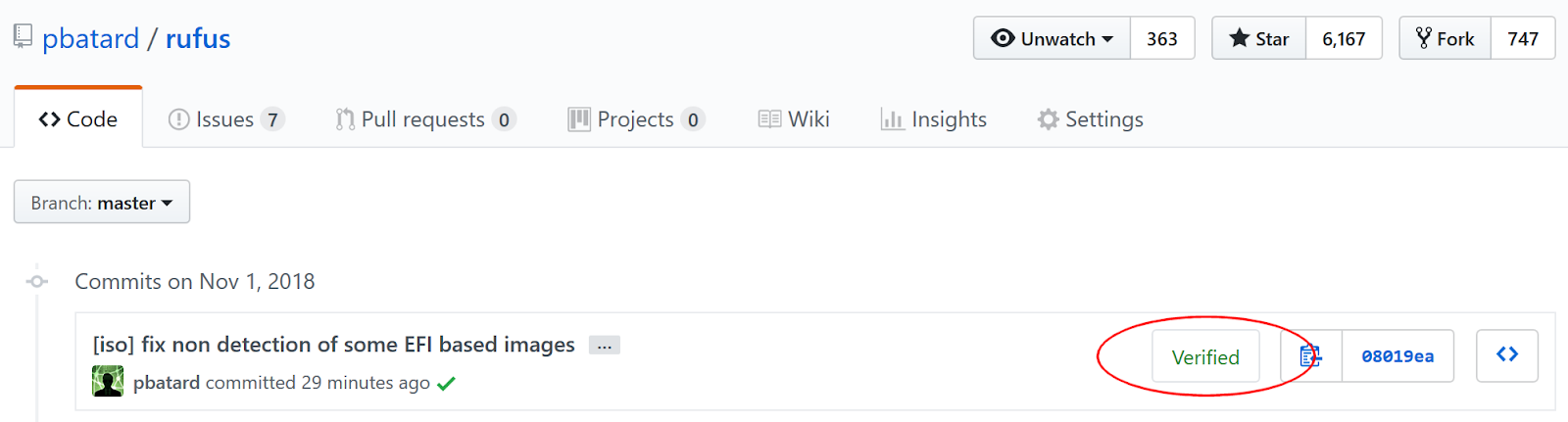
If you've been browsing git repositories in GitHub, you may have seen that some of them have Verified commits, which is a nice way to indicate that the person who actually committed the code is indeed who they say they are, and not an impersonator who just happened to reuse an e-mail address that is not theirs, for dubious reasons.

Typical display of "Verified" GPG commits in GitHub


Obviously, if you are the only person who has write access to your github repositories (which is how I tend to operate, for obvious security reasons) verified commits are not that much of a big deal. Still, having the badge show in github does help with ensuring that people who are browsing the repo know that you are taking security and trust seriously. So we might as well add commit signing, since it's pretty straightforward to do.

Now, since these are my main development tools, I will hereafter demonstrate how you can do that using TortoiseGit and MSYS/MinGW GPG on Windows. If you use something else, then you will have to look for post entries by other people, that match the tools you use. Also, to give credit where credit is due, I will point out that I am mostly copying Julian's dev.to entry titled "Sign your git commits with tortoise git on windows".

So, without further ado, here's how you should proceed:
  1. Create a new GPG key by firing up a MinGW prompt and issuing the following:

    $ gpg --full-generate-key --allow-freeform-uid
    gpg (GnuPG) 2.2.10-unknown; Copyright (C) 2018 Free Software Foundation, Inc.
    This is free software: you are free to change and redistribute it.
    There is NO WARRANTY, to the extent permitted by law.
    
    gpg: keybox '/home/nil/.gnupg/pubring.kbx' created
    Please select what kind of key you want:
       (1) RSA and RSA (default)
       (2) DSA and Elgamal
       (3) DSA (sign only)
       (4) RSA (sign only)
    Your selection? 1
    RSA keys may be between 1024 and 4096 bits long.
    What keysize do you want? (2048) 4096
    Requested keysize is 4096 bits
    Please specify how long the key should be valid.
             0 = key does not expire
          <n>  = key expires in n days
          <n>w = key expires in n weeks
          <n>m = key expires in n months
          <n>y = key expires in n years
    Key is valid for? (0) 0
    Key does not expire at all
    Is this correct? (y/N) y
    
    GnuPG needs to construct a user ID to identify your key.
    
    Real name: Pete Batard
    Email address: pete@akeo.ie
    Comment:
    You selected this USER-ID:
        "Pete Batard <pete@akeo.ie>"
    
    Change (N)ame, (C)omment, (E)mail or (O)kay/(Q)uit? O
    We need to generate a lot of random bytes. It is a good idea to perform
    some other action (type on the keyboard, move the mouse, utilize the
    disks) during the prime generation; this gives the random number
    generator a better chance to gain enough entropy.
    We need to generate a lot of random bytes. It is a good idea to perform
    some other action (type on the keyboard, move the mouse, utilize the
    disks) during the prime generation; this gives the random number
    generator a better chance to gain enough entropy.
    gpg: /home/nil/.gnupg/trustdb.gpg: trustdb created
    gpg: key F3E83EBB603AF846 marked as ultimately trusted
    gpg: directory '/home/nil/.gnupg/openpgp-revocs.d' created
    gpg: revocation certificate stored as '/home/nil/.gnupg/openpgp-revocs.d/236D8595DE48618C26293122F3E83EBB603AF846.rev'
    public and secret key created and signed.
    
    pub   rsa4096 2018-10-31 [SC]
          236D8595DE48618C26293122F3E83EBB603AF846
    uid                      Pete Batard <pete@akeo.ie>
    sub   rsa4096 2018-10-31 [E]
    

    You'll notice that, when prompted, we chose to create a 4096 RSA and RSA key that never expires.

    During that process, you will also be prompted to enter the password that safeguards your key. This is the password you will have to enter each time you sign a new commit, so choose it wisely.

    Note that, when using MSYS2 + MinGW, your GPG keys will be stored under C:\msys2\home\<your_user_name>\.gnupg\.
     
  2.  Generate the public key in a format that GitHub can accept:

    $ gpg --armor --export pete@akeo.ie
    -----BEGIN PGP PUBLIC KEY BLOCK-----
    
    mQINBFvZ0+gBEAC7Jkdt3aW5iURti+36suQN9dmhGfVJMEV/Y9giby78wYcq51rj
    IvJ2AuYEhVgiFwT2hrlKuems0Jsln6wGUULAQXpLMU4XxlyKHwBE3ETXCXWQbzxH
    rNqerDKNu54M/r3XNCW7r38vwNdYrh656eLccZ/jOH8aSSZ9KkBjJ1wa78tx7YZy
    +FXXjDbamP3Pu3CPp7Nx3y69FCFm2uYrDkLWqcOvweME9imIqdsLfd5bM+wYclbN
    QQuZArV7uoQ2xYFlVweaob5U3iUsGUQYuY7x3Mlbz/73wYxuOGUt5n6de3tdefrN
    V5csD3aJVQKjFWOW2oNzI8Qik9pDie+3XQEfbIVHhgCx9kLVe2MzBaWrnPgk2Epj
    bIhRheqzvV15iC70QchMrtDzXOcbNhaytggYWPRx1YtEN3G4pPnsVfq0oSdNhwlw
    VLYm6eK+kjr0PykIANiiDDe/4WiFTIS1mobp++QCFXm41jtfXP6PM3NJdf1Hx5VX
    CcRQKXmukeyW4DfYtr9GoKeu9G1vGQev1U+qjtOk+9SRrofsqfCqzJP4drjbSyk9
    43q9HBYSBjnslisQnrhhcl5/5Yb99+sS2EnpW7am/sarCHGiPkLi6eHfYpbxX7Lg
    nLXjmXYlpyCkJnkgwzsTUs3+7w2KHaBZ7yme70x2edBD9f1Ar3zm+ryW5QARAQAB
    tBpQZXRlIEJhdGFyZCA8cGV0ZUBha2VvLmllPokCTgQTAQgAOBYhBCNthZXeSGGM
    JikxIvPoPrtgOvhGBQJb2dPoAhsDBQsJCAcCBhUKCQgLAgQWAgMBAh4BAheAAAoJ
    EPPoPrtgOvhGUpkQAIHSu7BNo4/jUhtHjBMiiYVE6eJh1J8+lWkXuATCxo3BXrMb
    AAAdNsrPca09NVdSli3xameKSnWt3hXRpkNM2cAC/Sus8UjYGDaCP1pWNyfmd70y
    /uAZGf1FIeWL4yIiFcDROobLqlCE+qViWu8sG2Ris8hGA8sjR0cn5891Q/ncHFtE
    YYHzh0mn+A9I/gGSvArqYJdNNBptGplo2fnQQIODwHNYSPMCzBawFoll6jocjg6q
    FqlawC5f9zPs5HP9k0k0pp37f8i+ANftCfdwOEWurfBDGqrxKiJIyIaS9kLzwCQX
    poJGZO/rVbCDGvexfVkqoKMJRK0jO2Rh3p0vifZ2cwKPSFjWfSjUiPAUpcz0nuV5
    BSkrMNc1VHgP1FM4v2Vpi7lnaoWMLpVz3VJ8yRyRD/7c7oVEl0NL8lHMZaHiPprf
    LmeLIgM5ndh9wkvD9j2EH5JR72lACQtg5n9qmbDro2uJbtGqrhqrVQdPrPtv1XoM
    0JAIL+1RvdTuPPBclmTLwdXaztlnEjJOA9loWpkyMIlZVcb/6TWamGAzxu4wMv8o
    aQpaVqNIO9kq79lZMHFGDE4VRHAjrJh3nXKpi+/JOIf7xKAnwrZAquAC+bfqYYUm
    W9jg35aB+jASlI7+TvQHgal2dFSYebCeWpwPlJr7XeXWJab+UNajeKxRQ2wMuQIN
    BFvZ0+gBEAC6nJAWbF6YAnPDaHTTBAAYEHlbiPTt8gYUgoxkUJxV2fcj0g2ye0+x
    gFh7Z3eTw5zq3iojah8EWBj5WOHeI1R1q244qaje467onbgowcxsFOH/TgBs1aew
    DWNDIMJl/vkSEY5xdmtJIGIUJ/+BH9U7kSX3lB5IFz37WH6hcgQZUjD0fx+Hv5ZX
    7Fz8YGXnBnJRwblCJbvkq2BD/1fSI5REddILkQAKd9mzRoXFvKRYwV5Oq78NU4cd
    5e20+ALHCPC7fQQ3jFzUo2WMLywWDAi42DOn7E6/tIZT7BwKF08ozNDPpWTj5OOO
    OAqjesgsXI410kdayv25LopHnnPCcIcjm35AtA8TDSEfPFlbm59tBo7q5VWi15yb
    X1+vkSZfcUoe9lXIr/Ea+RYgayI8xFkBiOlWn8NaWjWrZEr6OG4EOk97bAgey4M4
    KEJJkQsQYsVSQ8yVkt1wETkH6GHQFoyoFJUJkxeWDXoG9LyBYr7n+NSbjOAujy/c
    XyemCFkJXSeTcn4KAIboBvEV0nQOMjfaEr+hkfXbESfm92MSlL54arrgyY7vcOSI
    iztc4ZiTmkQPeeG4PsqUaHYB1lj+qapVQlZ9O+OFH280YWylLBZJMWOKM1lMqgz3
    Z2avF2FVax+xBeE8pMnWAUbKTHB7BQAhATjxGGlWy6QtJRxpOrTcGwARAQABiQI2
    BBgBCAAgFiEEI22Fld5IYYwmKTEi8+g+u2A6+EYFAlvZ0+gCGwwACgkQ8+g+u2A6
    +EbNAQ//WL261oYfKskEmBzz88M7Tt6aj8NyQmXyrIY6RoEYK4+rnS2zFwQfIF6p
    3e4avUZYF5xTOSuuiJv4IImnjlilHjA+r6LcmqIGKilIeFQwyNLVr+H/FvZSzKYY
    Psr6v0CCBn/6UICmrLoDgr1IiWmlwVDKVNXDZLGHprB00WBrso0pBVWEmbkKzlP9
    lYlC11yXo/wsLLnQNbz3DzcUgtyFExyL37EGr1zw2xfmwmRZRQmpILpuiBE/VGI0
    pH4JReeGjcqh0TkK+70whQnM9VX6eZbV4cwtBXg1CixY+cwyQcCreRTneGPQT9jj
    5dmD9duQOiDw5QGAoQ4tc6AxQcf62KsZmXQ715IMVrbn3leeoVR5PaFQ/PR3MQn+
    eS0f+wIDLBgD1tjUeOvjWs79sB7LAvinndZUA/6+nfxR29753gpssFW5tFEK5Kit
    OwCnNG4P3SjqfYAN+IIBTUUUPjGPHTKEd85XUBUlCJg7i1iLaeZqamp9oga4gv6d
    lLQ50J84i4yk02Afhlic5CNw1l9TfCgdFWF/9+WO7qzHmdJsZl/9Gs05J3hbPzqh
    uji6ujyI7v9vDTDC2tR1l3zHTomFJ6Vs42MdpaBWtnePAIohnhtLKCjG3/Z04idj
    jjGTV+5EASM2h3WV7vfmxem2HyxEM0lwa5zj8AtaWugqmiO6Rik=
    =aMFF
    -----END PGP PUBLIC KEY BLOCK-----
    
     
  3. Go to https://github.com/settings/gpg/new and copy/paste the public key data from above.
     
  4. Because we are going to call GPG independently of MinGW, now you must copy your C:\msys2\home\<your_user_name>\.gnupg directory to C:\Users\<your_user_name>\.

    This is needed because this is the default location gpg.exe looks for key when not invoked from msys/MinGW and it doesn't seem possible to alter it without modifying the registry or creating environment variables, which is cumbersome. Besides, this is important data and you are a lot more likely to backup the content of C:\Users\<your_user_name>\ than C:\msys2\home\, so it's probably not a bad idea to duplicate this valuable content there.
     
  5. Get the key id that you'll need to use in your config file with:
    $ gpg --list-keys --keyid-format LONG pete@akeo.ie
    gpg: checking the trustdb
    gpg: marginals needed: 3  completes needed: 1  trust model: pgp
    gpg: depth: 0  valid:   1  signed:   0  trust: 0-, 0q, 0n, 0m, 0f, 1u
    pub   rsa4096/F3E83EBB603AF846 2018-10-31 [SC]
          236D8595DE48618C26293122F3E83EBB603AF846
    uid                 [ultimate] Pete Batard <pete@akeo.ie>
    sub   rsa4096/308A9C6106D2FCE4 2018-10-31 [E]

    The 40 characters hex string under pub is the value you are after.
     
  6. In each project where you want to have signed commits, edit your .git/config so that it contains the following options:
    [user]
        signingkey = 236D8595DE48618C26293122F3E83EBB603AF846
    [commit]
        gpgsign = true
    [gpg]
        program = "C:/msys2/usr/bin/gpg.exe"
If you do the above correctly, then next time you commit into the git repo you modified, you should be prompted for your GPG key password, and, after you push to GitHub, you should find that the commit has the Verified badge.

Note that you can also validate whether your commit was properly signed, before pushing, by issuing:
$ git log --show-signature

2017-05-17

Using a YubiKey to store code signing certificates

Preamble (skip this if you only want the How To)

If you are a Windows software developer and/or distributor, then, by all means, you are well aware that you should always digitally sign your software, so that a minimum level of accountability and trust can be established between yourself and your users.

As you should also know, this process is usually accomplished by acquiring a Windows Authenticode credential (a credential is a certificate + its associated private key) which can then be used to digitally sign binary executables.

However, one must also consider the security aspect of the signing process and realize that, given the faintest opportunity, ill-intentioned people will try to grab your code signing credentials, if they can. For instance, perhaps you are already aware that the NSA's stuxnet virus was signed using credentials that were stealthily duplicated from JMicron and Realtek, and that, outside of state sponsored endeavours, malware authors are also exceedingly interested in acquiring data they could use to steal the identify of a trustworthy person, even more so if that person or entity is producing popular software.

(Image credits: Yubico.com)
This means that, should malware find its way on your development machine (as part of an infected development tool for instance which malware authors are likely to target if they can, as it can mean a huge payoff), it'll most likely be able to steal BOTH your credential and its private key password, since one can only expect semi-competent malware to implement both a disk scanning and a keylogging facility.

Therefore, as a code signing developer, you're only ever one dodgy software installation away from finding that your credential(s) and protectivve password(s) have been exfiltrated into very wrong hands indeed...

As a result, it doesn't take a paranoid person to realize that storing credentials on disk, even if it's a removable USB flash drive, that you only plug when signing binaries, is a very very bad idea. Similarly, if your alternative is to store your signing credentials into the Windows certificate store, and expect that it'll be enough, you should probably realize that the level of a software-only security solution on Windows goes about as far as the distance you can throw a chair... with Steve Ballmer sitting on it.

Thus, what you really want, is have your credentials stored on a dedicated removable device, that's designed precisely to protect that kind of stuff. And this is where FIPS 201 Personal Identity Verification (PIV) devices, and especially the convenient and relatively affordable YubiKeys from Yubico come into play.


For the record, most of the process described below can likely be applied to any FIPS 201 PIV device, but since YubiKeys are what I use, I'll focus only on YubiKey usage.

Prerequisites


First of all, it is important to note that not all YubiKeys are created equal. Especially, the cheapest YubiKey model does NOT have PIV support. Thus, if you plan to use a YubiKey for the purpose of signing code, you should steer away from the FIDO U2F Security Key model, as it is incompatible with this procedure. With this being said, the prerequisites are as follow:
  • Any YubiKey model EXCEPT the FIDO U2F Security Key. My preference goes for the YubiKey 4, but anything that has the PIV feature will do.
  • Your code signing credentials, which you have obtained from your Certification Authority, temporarily saved as a .p12 file (Note: You may have to use the Windows certificate store export feature to get to that file, and follow the procedure highlighted here, if your CA only delivers signing credentials into the certificate store)
  • The latest version of YubiKey PIV Manager, which you should download and install from here.

Storing your code signing credential into a YubiKey

  1. Open PIV Manager (pivman.exe). You may have to go fetch it from its installation directory if it did not create a Start menu entry, as was the case on my machine:


  2. Plug your YubiKey. If this is the first time you use it, you will be greeted by the following screen asking you to set a PIN:

    Under "Management Key" you should keep the "Use PIN as key" option checked.

    On the other hand, since you're going to use that key for code signing on Windows, you can disregard the cross-platform compatibility recommendation, as I haven't seen any issues with using a PIN with extended alphanumeric characters on Windows, and, with a length of 8 characters, the PIN is already short enough as it is.

    One thing I should point out is that, just like with a credit card, the device only gives you 3 attempts at entering the right PIN before locking itself (which is exactly what you want from a device that stores valuable data) so keep that in mind when you use it. Of course, a YubiKey can always be reset if locked, but you will lose access to the credentials stored on it.

  3. Once you have set the PIN, you should see the following screen, where you need to click the "Certificates" button:

  4. On the Certificates screen, select the "Digital Signature" tab:

  5.  Click "Import from file" and select your .p12 code signing credential. You will be prompted by a password, which of course is the password for the private key of your .p12 (and not the key's PIN).

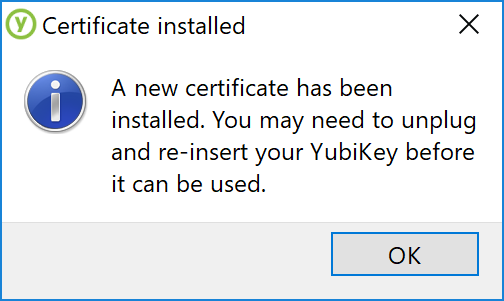
  6. If everything goes well, you will see the following notice, which you should follow by unplugging your YubiKey:

  7. After re-plugging your YubiKey, and going back to the "Digital Signature" certificate, you should see details about the installed credential, which is ready to be used for code signing:

Bonus: Storing more than one code signing credential onto your YubiKey

If you are producing Windows software that still needs to target platforms like Vista or XP, you might be saying: "That's all very well, but what if I need to sign my software with both an SHA-1 and SHA-256 Authenticode credential? There's only one Digital Signature slot on the YubiKey after all..."

Well, the thing is, this is one of the exact issues I have been faced with for Rufus, and I can tell you that, as far as code signing is concerned, the labels assigned to the certificate/credential storage slots are pretty much irrelevant. You can use any of these 4 slots to store any code signing credential you want (since they are referenced by their fingerprint), and we only used the "Digital Signature" PIV slot because that's the one that makes most sense for storing a code signing signature. However, if you also want to store an SHA-1 credential, you can use any of the remaining slots to do that.

My preference is to use the optional "Card Authentication" slot to store your extra SHA-1 credential (so that you can use the "Authentication" and "Key Management" for actual authentication or key management if you ever need to). At least, this is what I have been doing for double-signing my Rufus application, and neither SignTool or the YubiKey seem to have any trouble with that.

Using the stored credentials with SignTool


Okay, so you have your code signing credential(s) safely stored on a secure YubiKey. Now what?
Clearly you can't use SignTool in the usual fashion, where you reference a local .p12 or .pfx file.

Instead, and especially if you have multiple code signing credentials residing on it, because the YubiKey is automatically detected as a credentials storage device by Windows, what you want to do is reference your credentials by their unique SHA-1 fingerprint in SignTool, and let Windows/YubiKey handle the rest. This is exactly what the /sha1 flag of SignTool is for.

However, before we can do that, we need to figure out the SHA-1 fingerprint of your certificate.
The simplest way to do that, while ensuring that you are really going to be accessing the credentials that you want to access, is:

  1. Go back to PIV Manager, and open the slot where the credential you are after resides:

  2. Click "Export Certificate" and save the file as a .crt (you will need to type the extension as part of the file name)

  3. Double click on the .crt you just saved and go to the "Details" tab

  4. Scroll down to the "Thumbprint" field (should be the very last) and copy its content. This is the SHA-1 fingerprint you are after:
Now you can use SignTool with /sha1 instead of /f and when you do so, you will be prompted to plug your YubiKey (if it isn't plugged in) as well as your PIN, which, if you enter successfully, will enable the signature operation.

I'll conclude with a real life example, using a YubiKey 4 where I store both an SHA-256 code signing credential (fingerprint 5759b23dc8f45e9120a7317f306e5b6890b612f0) and an SHA-1 credential (fingerprint 655f6413a8f721e3286ace95025c9e0ea132a984), that I use to sign and timestamp the dual SHA-1+SHA-256 Rufus binary:

SignTool sign /v /sha1 655f6413a8f721e3286ace95025c9e0ea132a984 /fd SHA1 /tr http://sha256timestamp.ws.symantec.com/sha256/timestamp rufus.exe
SignTool sign /as /v /sha1 5759b23dc8f45e9120a7317f306e5b6890b612f0 /fd SHA256 /tr http://sha256timestamp.ws.symantec.com/sha256/timestamp rufus.exe

IMPORTANT NOTE: Do *NOT* let Windows install the Yubikey Minidriver as part of Windows Update!


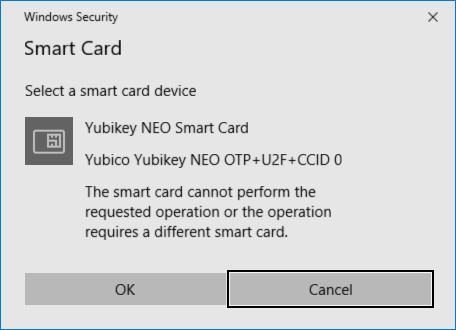
It looks like the latest versions of Windows insist on installing a Yubikey Minidriver, which ends up wrecking havoc on your ability to actually use a Yubikey as a signing device. If you let Windows have its way, you may end up getting the a message stating The smart card cannot perform the requested operation or the operation requires a different smart card when attempting to sign your binary:


If you get this issue, just go to your installed software and delete the Yubikey Smart Card Minidriver:


Once you have done that, you should find that you can use your Yubikey for signing applications again.

Or, if you want to use the MiniDriver, you can follow the steps highlighted here.

Final words

Now that you've seen how to do it, I would strongly urge you to go and purchase a YubiKey (or any other FIPS 201 PIV device) and NEVER, EVER again store code signing credentials on anything else than a secure password protected device that was designed precisely for this.

This means that, once you have done all of the above and validated that it works, you should DELETE your .p12/.pfx and remove any trace of your credential(s) from your computer.

Of course, if you are really worried, you may still choose to store a copy of said credential(s), on a backup CD-ROM (preferably in a password protected archive), that you'll only store in a locked place. But by all means, if you have a working YubiKey, you should not let your code signing credential(s) anywhere near any of the computers that you own!

2017-05-15

Compiling desktop ARM or ARM64 applications with Visual Studio 2017

Unlike what I was led to think, and despite the relative failure of Windows RT (which was kind of a given, considering Microsoft's utterly idiotic choice for its branding), it doesn't look like Microsoft has abandoned the idea of Windows on ARM/ARM64, including allowing developers to produce native desktop Windows applications for that platform.

However, there are a couple caveats to work through, before you can get Visual Studio 2017 to churn out Windows native ARM/ARM64 applications.

Caveat #1 - Getting the ARM/ARM64 compiler and libraries installed


In Visual Studio 2017 setup, Microsoft seem to have done their darnedest to prevent people from installing the MSVC ARM compilers. This is because, they are not allowing the ARM development components to be listed in the default "Workloads" view, and if you want them, you will need to go fetch them in the "Individual components" view as per the screenshot below:


It is important to note that you will need Visual Studio 2017 Update 4 (version 15.4) or later for the ARM64 compiler to be available for installation. ARM64 was silently added by Microsoft late in the Visual Studio 2017 update cycle, so if it's ARM64 you are after, you will need an updated version of the Visual Studio installer.

Caveat #2 - Error MSB8022: Compiling Desktop applications for the ARM/ARM64 platform is not supported.


Okay, now that you have the ARM/ARM64 compiler set, you created your nice project, set the target to ARM/ARM64 (while cursing Microsoft for even making that step painful), hit "Build Solution", and BAM!, you are only getting a string of:

Toolset.targets(53,5): error MSB8022: Compiling Desktop applications for the ARM platform is not supported.


What gives?

Short answer is, Microsoft doesn't really want YOU to develop native desktop ARM/ARM64 applications. Instead, they have this grand vision where you should only develop boring, limited UWP interpreted crap (yeah, I know the intermediary CIL/bytecode gets compiled to a reusable binary on first run, but it is still interpreted crap - I mean, if it is so great, then why isn't the Visual Studio dev env using it?), that they'll then be able to provide from the App Store. God forbid, in this day and age, you would still want to produce a native win32 executable!

So, they added an extra hurdle to produce native ARM/ARM64 windows binaries, which you need to overcome by doing the following:

  1. Open every single .vcxproj project file that is part of your solution
  2. Locate all the PropertyGroup parts that are relevant for ARM/ARM64. There should usually be two for each, one for Release|ARM[64] and one for Debug|ARM[64] and they should look something like this:

      <PropertyGroup Condition="'$(Configuration)|$(Platform)'=='Release|ARM[64]'" Label="Configuration">
        <ConfigurationType>Application</ConfigurationType>
        <CharacterSet>Unicode</CharacterSet>
        <WholeProgramOptimization>true</WholeProgramOptimization>
        <PlatformToolset>v141</PlatformToolset>
      </PropertyGroup> 

  3. Insert a new <WindowsSDKDesktopARMSupport>true</WindowsSDKDesktopARMSupport> or <WindowsSDKDesktopARM64Support>true</WindowsSDKDesktopARM64Support> property, so that you have (ARM64):

      <PropertyGroup Condition="'$(Configuration)|$(Platform)'=='Release|ARM64'" Label="Configuration">
        <ConfigurationType>Application</ConfigurationType>
        <CharacterSet>Unicode</CharacterSet>
        <WholeProgramOptimization>true</WholeProgramOptimization>
        <PlatformToolset>v141</PlatformToolset>
        <WindowsSDKDesktopARM64Support>true</WindowsSDKDesktopARM64Support>
      </PropertyGroup> 

If you do just that, then Visual Studio should now allow you to compile your ARM application without complaining. However, this may not be the end of it because...

Caveat #3 - You may still be missing some libraries unless you use a recent SDK


Depending on the type of desktop application you are creating, you may find that the linker will complain about missing libraries. Some of which are fairly easy to sort out, and are due to the Win32 and x64 default configs being more forgiving about not explicitly specifying libraries such as gdi32, advapi32, comdlg32.lib or shell32 for linking. However, if you are using the default 8.1 SDK in your project, you may also find that some very important libraries are missing for ARM, such as setupapi.lib and other ones. These libraries seem to only have been added by Microsoft recently, so it might be a good idea to switch to using a recent Windows SDK in your project, such as 10.0.15063.0:


Be mindful however that the default SDK that Visual Studio automatically installs if you select the C/C++ components is not full-featured, and will be missing important libraries for ARM/ARM64 compilation, so there again, you must go to the individual components and explicitly select the SDK you want, so that the full version gets installed.

With all the above complete, you should now be able to join the select club of developers who are able to produce actual native Windows applications for ARM/ARM64, and this just in time for the release of Windows 10 on ARM64.

Of course, and as usual, if you want a real-life example of how it's done, you can look at how Rufus does it...

2015-01-08

Easily create UEFI applications using Visual Studio 2015

As pointed out before, Visual Studio is now essentially free for all development, and its solid IDE of course makes is very desirable as the environment to use to develop UEFI applications on Windows.

Now, you might have read that, short of using the oh-so-daunting EDK2, and the intricate voodoo magic you'll have to spend days on, to make it play nice with the Visual Studio IDE, there is no salvation in the UEFI world. However, this couldn't be further from the truth.

Enters UEFI:SIMPLE.

The thing is, Visual Studio can already compile EFI applications without having to rely on any external tools, and even if you want an EDK2 like environment, with the common EFI API calls that it provides, you can totally do away with the super heavy installation and setup of the EDK, and instead use the lightweight and straightforward GNU-EFI library, that provides about the same level of functionality (as far as building standalone EFI applications or drivers are concerned, which is what we are interested in).

So really, if you want to craft an EFI application in no time at all, all you need to do is:

  1. Install Visual Studio 2015, which is totally free and which, no matter who you work for or what restrictions your corporate IT department tries to impose, you are 100% legally entitled to when it comes to trying to compile and test UEFI:SIMPLE.
  2. As suggested by the Visual Studio installer, install a git client such as msys-git (or TortoiseGit + msys-git). Now, you're going to wonder why, with git support being an integral part of Visual Studio 2015, we actually need an external client, but one problem is that Microsoft decided to strip their embedded git client of critical functionality, such as git submodule support, which we'll need.
  3. Because you'd be a fool not to want to test your EFI application or driver in a virtual environment, and, thanks to QEMU, this is so exceedingly simple to achieve that UEFI:SIMPLE will do it for you, you should download and install QEMU, preferably the 64 bit version (you can find a 64 bit qemu installer here), and preferably to its default of C:\Program Files\qemu.
  4. Clone the UEFI:SIMPLE git project, using the URI https://github.com/pbatard/uefi-simple.git. For this part, you can either use the embedded git client from Visual Studio or your external client.
  5. Now, using your external git client, navigate to your uefi-simple directory and issue the following commands:
    git submodule init
    git submodule update
    This will fetch the gnu-efi library source, which we rely on to build our application.
  6. Open the solution file in Visual Studio and just click the "Local Windows Debugger" button to both compile and run our "Hello, World"-type application in QEMU.
    Through its debug.vbs script, which can be found under the "Resource File" category, the UEFI:SIMPLE solution will take of setting everything up for you, including downloading the OVMF UEFI firmware for QEMU.
    Note that if you didn't install QEMU into C:\Program Files\qemu\ you will need to edit debug.vbs to modify the path.
  7. Finally, because the UEFI:SIMPLE source is public domain, you can now use it as a starting point to build your own UEFI application, whilst relying on the standard EFI API calls that one expects, and, more importantly, with an easy way to test your module at your fingertips.
Oh and I should point out that UEFI:SIMPLE also has ARM support, and can also be compiled on Linux, or using MinGW if you don't want to use Visual Studio on Windows. Also, if you want real-life examples of fully fledged UEFI applications, that were built using UEFI:SIMPLE as their starting point, you should look no further than efifs, a project that builds whole slew of EFI file system drivers, or UEFI:NTFS, which allows seamless EFI boot of NTFS partition.

2014-11-13

Visual Studio 2013 has now become essentially free...

See http://www.visualstudio.com/products/visual-studio-community-vs.

I'm just going to point out to the first 2 paragraph of the license terms:
1.   INSTALLATION AND USE RIGHTS.
a.   Individual license. If you are an individual working on your own applications to sell or for any other purpose, you may use the software to develop and test those applications.
b.   Organization licenses. If you are an organization, your users may use the software as follows:
  • Any number of your users may use the software to develop and test your applications released under Open Source Institute (OSI)-approved open source software licenses.
  • Any number of your users may use the software to develop and test your applications as part of online or in person classroom training and education, or for performing academic research.
  • If none of the above apply, and you are also not an enterprise (defined below), then up to 5 of your individual users can use the software concurrently to develop and test your applications.
  • If you are an enterprise, your employees and contractors may not use the software to develop or test your applications, except for open source and education purposes as permitted above. An “enterprise” is any organization and its affiliates who collectively have either (a) more than 250 PCs or users or (b) more than one million US dollars (or the equivalent in other currencies) in annual revenues, and “affiliates” means those entities that control (via majority ownership), are controlled by, or are under common control with an organization.
Basically, this means that even if you're a corporate user, you can legally install and use Visual Studio Community Edition, on any computer you want, to compile and/or contribute to Open Source projects, and this regardless of your company's internal policies regarding the installation of Software (otherwise any company could enact an internal policy such as "Microsoft software licenses don't apply here" to be entitled to install as many unlicensed copies of Windows as they like).
So I have to stress this out very vehemently: If a company or IT department tries to take your right to download and install Visual Studio 2013 Community Edition to compile or test Open Source projects, THEY ARE IN BREACH OF THE LAW!
The only case where you are not entitled to use Visual Studio Community Edition is if you're developing a closed source application for a company. But who in their right mind would ever want to do something like that anyway?... ;)

So all of a sudden, you no longer have to jump through hoops if you want to recompile, debug and contribute to rufus, libusb or libwdi/Zadig - simply install Visual Studio 2013, as you are fully entitled to (because all these projects use an OSI approved Open Source license), and get going!

Oh, and for the record, if you want to keep a copy of Visual Studio 2013 Community Edition, for offline installation, you should run the installer as:
vs_community.exe /layout
Note however that this will send you back 8 GB in terms of download size and disk space.

2014-05-31

Restoring EFI NVRAM boot entries with rEFInd and Rufus

So, you reinstalled Windows, and it somehow screwed the nice EFI entry you had that booted your meticulously crafted EFI system partition? You know, the one you use with rEFInd or ELILO or whatever, to multiboot Linux, Windows, etc., and that has other goodies such as the EFI shell...

Well, here's how you can sort yourself out (shamelessly adapted from the always awesome and extremely comprehensive Arch Linux documentation):
  • Download the latest rEFInd CD-R image from here.
  • Extract the ISO and use Rufus to create a bootable USB drive. Make sure that, when you create the USB, you have "GPT partition scheme for UEFI computer" selected, under "Partition scheme and target system type".
  • Boot your computer in UEFI mode, and enter the EFI BIOS to select the USB as your boot device
  • On the rEFInd screen select "Start EFI shell".
  • At the 2.0 Shell > prompt type:
    bcfg boot dump

    This should confirm that some of your old entries have been unceremoniously wiped out by Windows.
  • Find the disk on which your old EFI partition resides by issuing something like:
    dir fs0:\efi

    NB: you can use the map command to get a list of all the disks and partitions detected during boot.
  • Once you have the proper fs# information (and provided you want to add an entry that boots into a rEFInd installed on your EFI system partition under EFI\refind\refind_x64.efi), issue something like:
    bcfg boot add 0 fs0:\EFI\refind\refind_x64.efi rEFInd
    Note: If needed you can also use bcfg boot rm # to remove existing entries.
  • Confirm that your entry has been properly installed as the first option, by re-issuing bcfg boot dump. Then remove the USB, reset your machine, and you should find that everything is back to normal.
NOTE: Make sure you use the latest rEFInd if you want an EFI shell that includes bcfg. Not all EFI shells will contain that command!

2014-05-29

Compiling and installing Grub2 for standalone USB boot

The goal here, is to produce the necessary set of files, to be written to an USB Flash Drive using dd (rather than using the Grub installer), so that it will boot through Grub 2.x and be able to process an existing grub.cfg that sits there.

As usual, we start from nothing. I'll also assume that you know nothing about the intricacies of Grub 2 with regards to the creation of a bootable USB, so let me start with a couple of primers:

  1. For a BIOS/USB boot, Grub 2 basically works on the principle of a standard MBR (boot.img), that calls a custom second stage (core.img), which usually sits right after the MBR (sector 1, or 0x200 on the UFD) and which is a flat compressed image containing the Grub 2 kernel plus a user hand-picked set of modules (.mod).
    These modules, which get added to the base kernel, should usually limit themselves to the ones required to access the set of file systems you want Grub to be able to read a config file from and load more individual modules (some of which need to be loaded to parse the config, such as normal.mod or terminal.mod).
    As you may expect, the modules you embed with the Grub kernel and the modules you load from the target filesystem are exactly the same, so you have some choice on whether to add them to the core image or load them from the filesystem.
     
  2. You most certainly do NOT want to use the automated Grub installer in order to boot an UFD. This is because the Grub installer is designed to try to boot the OS it is running from, rather than try to boot a random target in generic fashion. Thus, if you try to follow the myriad of quick Grub 2 guides you'll find floating around, you'll end up nowhere in terms of booting a FAT or NTFS USB Flash Drive, that should be isolated of everything else.
With the above in mind, it's time to get our hands dirty. Today, I'm going to use Linux, because my attempts to try to build the latest Grub 2 using either MinGW32 or cygwin failed miserably (crypto compilation issue for MinGW, Python issue for cygwin on top of the usual CRLF annoyances for shell scripts due to the lack of a .gitattributes). I sure wish I had the time to produce a set of fixes for Grub guys, but right now, that ain't gonna happen ⇒ Linux is is.

First step is to pick up the latest source, and, since we like living on the edge, we'll be using git rather than a release tarball:

git clone git://git.savannah.gnu.org/grub.git

Then, we bootstrap and attempt to configure for the smallest image size possible, by disabling NLS (which I had hoped would remove anything gettext but turns out not to be the case - see below).

cd grub
./autogen.sh
./configure --disable-nls
make -j2

After a few minutes, your compilation should succeed, and you should find that in the grub-core/ directory, you have a boot.img, kernel.img as well as a bunch of modules (.mod).

As explained above, boot.img is really our MBR, so that's good, but we're still missing the bunch of sectors we need to write right after that, that are meant to come from a core.img file.

The reason we don't have a core.img yet is because it is generated dynamically, and we need to tell Grub exactly what modules we want in there, as well as the disk location we want the kernel to look for additional modules and config files. To do just that, we need to use the Grub utility grub-mkimage.

Now that last part (telling grub that it should look at the USB generically and in isolation, and not give a damn about our current OS or disk setup) is what nobody on the Internet seems to have the foggiest clue about, so here goes: We'll want to tell Grub to use BIOS/MBR mode (not UEFI/GPT) and that we'll have one MBR partition on our UFD containing the boot data that's not included in boot.img/core.img and that it may need to proceed. And with BIOS setting our bootable UFD as the first disk (whatever gets booted is usually the first disk BIOS will list), we should tell Grub that our disk target is hd0. Furthermore, the first MBR partition on this drive will be identified as msdos1 (Grub calls MBR-like partitions msdos#, and GPT partitions gpt#, with the index starting at 1, rather than 0 as is the case for disks).

Thus, if we want to tell Grub that it needs to look for the first MBR partition on our bootable UFD device, we must specify (hd0,msdos1) as the root for our target.
With this being sorted, the only hard part remaining is figure out the basic modules we need, so that Grub has the ability to actually identify and read stuff on a partition that may be FAT, NTFS or exFAT. To cut a long story short, you'll need at least biosdisk and part_msdos, and then a module for each type of filesystem you want to be able to access. Hence the complete command:

cd grub-core/
../grub-mkimage -v -O i386-pc -d. -p\(hd0,msdos1\)/boot/grub biosdisk part_msdos fat ntfs exfat -o core.img

NB: If you want to know what the other options are for, just run ../grub-mkimage --help
Obviously, you could go crazy adding more file systems, but the one thing you want to pay attention is the size of core.img. That's because if you want to keep it safe and stay compatible with the largest choice of disk partitioning tools, you sure want to have core.img below 32KB - 512 bytes. The reason is there still exists a bunch of partitioning utilities out there that default to creating their first partition on the second "track" of the disk. And for most modern disks, including flash drives, a track will be exactly 64 sectors. What this all means is, if you don't want to harbour the possibility of overflowing core.img onto your partition data, you really don't want it to be larger than 32256 or 0x7E00 bytes.
OK, so now that we have core.img, it's probably a good idea to create a single partition on our UFD (May I suggest using Rufus to do just that? ;)) and format it to either FAT/FAT32, NTFS or exFAT.

Once this is done, we can flat-copy both the MBR, a.k.a. boot.img, and core.img onto those first sectors. The one thing you want to pay attention to here is, while copying core.img is no sweat, because we can just use a regular 512 byte sector size, for the MBR, you need to make sure that only the first 440 bytes of boot.img are copied, so as not to overwrite the partition data and the disk signature that also resides in the MBR and that has already been filled. So please pay close attention to the bs values below:

dd if=boot.img of=/dev/sdb bs=440 count=1
dd if=core.img of=/dev/sdb bs=512 seek=1 # seek=1 skips the first block (MBR)

Side note: Of course, instead of using plain old dd, one could have used Grub's custom grub-bios-setup like this:

../grub-bios-setup -d. -b ./boot.img -c ./core.img /dev/sdb

However, the whole point of this little post is to figure out a way to add Grub 2 support to Rufus, in which we'll have to do the copying of the img files without being able to rely on external tools. Thus I'd rather demonstrate that a dd copy works just as good as the Grub tool for this.
After having run the above, you may think that all that's left is copying a grub.cfg to /boot/grub/ onto your USB device, and watch the magic happen... but you'll be wrong.

Before you can even think about loading a grub.cfg, and at the very least, Grub MUST have loaded the following modules (which you'll find in your grub-core/ directory and that need to be copied on the target into a /boot/grub/i386-pc/ folder):
  • boot.mod
  • bufio.mod
  • crypto.mod
  • extcmd.mod
  • gettext.mod
  • normal.mod
  • terminal.mod
As to why the heck we still need gettext.mod, when we made sure we disabled NLS, and also why we must have crypto, when most usages of Grub don't care about it, your guess is as good as mine...

Finally, to confirm that everything works, you can add echo.mod to the list above, and create a /boot/grub/grub.cfg on your target with the following:

insmod echo
set timeout=5

menuentry "test" {
    echo "hello"
}

Try it, and you should find that your Grub 2 config is executing at long last, whether your target filesystem in FAT, NTFS or exFAT, and you can now build custom bootable Grub 2 USBs on top of that. Isn't that nice?

FINAL NOTE: In case you're using this to try boot an existing Grub 2 based ISO from USB (say Aros), be mindful that, since we are using the very latest Grub code, there is a chance that the modules from the ISO and the kernel we use in core may have some incompatibility. Especially, you may run into the obnoxious:

error: symbol 'grub_isprint' not found.

What this basically means is that there is a mismatch between your Grub 2 kernel version and Grub 2 module. To fix that you will need to use kernel and modules from the same source.