このサイトでは、ユーザーエクスペリエンス向上のためクッキーを使用しています。クッキーの使用方法についてはプライバシーポリシーをご覧ください。

Nutakuのホームページに行くNutaku.net : Best Hentai and Porn Games
検索
ホーム ゲーム イベント ニュース サポート
日本語
English Español Français Deutsch Polski 中文 國語
登録して100ゴールドを獲得ログイン
Menu
ゲーム
タグ
お気に入り
Gold
サポート
他の
閉じる
ホーム ゲーム イベント ニュース サポート
日本語
English Español Français Deutsch Polski 中文 國語
コンテンツの好み
ログインして設定をカスタマイズしてください。

コンテンツの種類でゲームをフィルタリング:

  • PCゲーム
  • 無料ブラウザゲーム
  • 無料PCゲーム
  • 有料PCゲーム
  • 新作PCゲーム
  • 早期アクセスPCゲーム
  • セール中のPCゲーム
  • オファーとイベント
  • トップランキング
  • 最新
  • もうすぐ終了
  • モバイルゲーム
  • Androidアプリゲーム
  • 早期アクセスモバイルゲーム
  • トレンドのジャンル
  • RPG
  • ビジュアルノベル
  • アドベンチャー
  • クリック
  • シミュレーション
  • 恋愛シミュレーション
  • パズル
  • 計画
  • ファイティング
  • すべてのジャンルを見る
  • トレンドのタグ
  • 無修正
  • 無料プレイ
  • アニメ
  • ファンタジー
  • 化け物
  • 3D
  • ウェスタン
  • 女性の主人公
  • VR
  • 竜
  • すべてのタグを表示
  • お気に入り管理
ハートをクリックしてゲームをお気に入り登録
お気に入りのゲームはここに表示されます
プロフィールページでお気に入りを管理可能
ゲームライブラリを表示
お気に入りゲームを選んで今すぐプレイ開始!
お気に入りゲームをすべて表示
  • サポートに問い合わせ
  • お支払い
  • アカウント
  • ゲームプレイ
  • サポートのご要望やご意見・ご感想は、Discordをご覧ください

    Discord
  • よくある質問
  • ニュース&更新情報
  • 会社概要
  • ディレクトリ
  • マイ招待
  • プレス
  • 一緒に遊ぼう:
  • Discord
  • Twitter
  • Facebook
  • Youtube
  • Instagram
  1. ホーム›
  2. 計画,アクションRPG›
  3. horny waifu kaiju strike
Horny Waifu: Kaiju Strike - アクションRPG ゲーム
Android用アプリをダウンロード (APKファイル)Install on iOS device (IPA file)お気に入りに追加

Horny Waifu: Kaiju Strike

パブリッシャー: Naughty Girls

デベロッパー: Naughty Girls

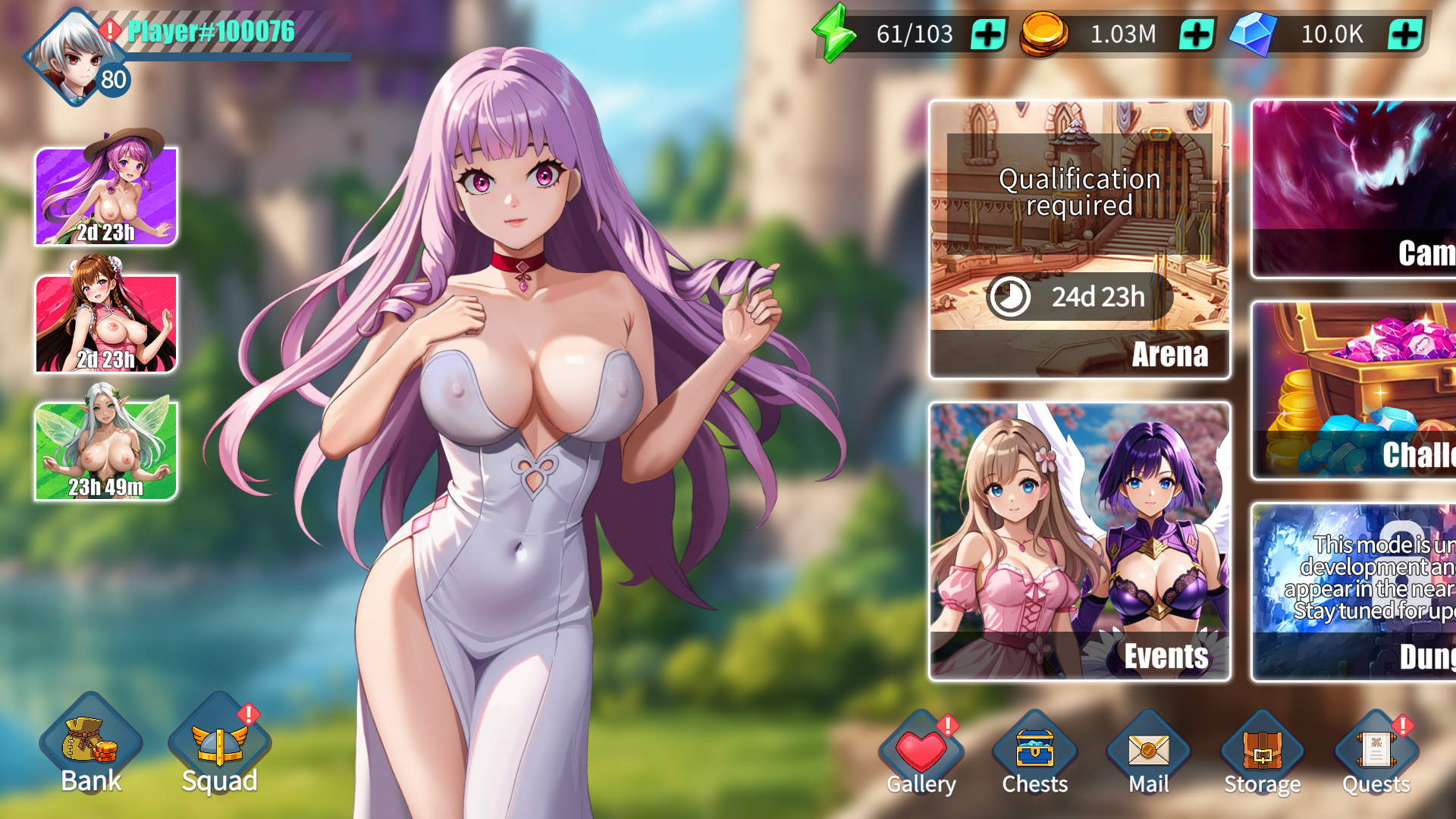
  • action-rpgゲーム - Horny Waifu: Kaiju Strike
  • action-rpgゲーム - Horny Waifu: Kaiju Strike
  • action-rpgゲーム - Horny Waifu: Kaiju Strike
  • action-rpgゲーム - Horny Waifu: Kaiju Strike
  • action-rpgゲーム - Horny Waifu: Kaiju Strike
  • action-rpgゲーム - Horny Waifu: Kaiju Strike
  • action-rpgゲーム - Horny Waifu: Kaiju Strike
  • action-rpgゲーム - Horny Waifu: Kaiju Strike
  • action-rpgゲーム - Horny Waifu: Kaiju Strike
action-rpgゲーム - Horny Waifu: Kaiju Strikeaction-rpgゲーム - Horny Waifu: Kaiju Strikeaction-rpgゲーム - Horny Waifu: Kaiju Strikeaction-rpgゲーム - Horny Waifu: Kaiju Strikeaction-rpgゲーム - Horny Waifu: Kaiju Strikeaction-rpgゲーム - Horny Waifu: Kaiju Strikeaction-rpgゲーム - Horny Waifu: Kaiju Strikeaction-rpgゲーム - Horny Waifu: Kaiju Strikeaction-rpgゲーム - Horny Waifu: Kaiju Strikeaction-rpgゲーム - Horny Waifu: Kaiju Strike

* 無料ゲームにはアプリ内購入が含まれる場合があります。

ジャンル
アクションRPG計画
タグ
3D 64 Bit APKAI Generated Contentアニメ・セックスアニメオートバトル巨乳キャラクター進化コレクションコスプレカスタムキャラクターDaily Battles毎日のミッション悪魔エピック妖精ファンタジー無料プレイハードコアハーレム変態深みのあるゲームプレイリーダーボード女化け物オーラルセックスプレイヤー対プレイヤーレイドバトルロールプレイング小説計画的チームビルディング無修正
利用可能
Android iOS PCブラウザ
ゲーム情報
  • 言語:
    ロシア, 英語
  • バージョン:
    0.9.3
  • ダウンロードサイズ:
    345.22 mb
SNS
Discord — ディスカッションにご参加ください
言語日本語
English Español Français Deutsch Polski 中文 國語
  • Nutakuゲーム
  • 無料PCゲーム
  • 有料PCゲーム
  • 無料Androidゲーム
  • 無料iOSゲーム
  • オファーとイベント
  • 多様性を尊重するアダルトゲーム
  • セックスゲーム
  • アダルトゲーム
  • BLエロゲー
  • レズビアンセックスゲーム
  • トランスジェンダー セックス ゲーム
  • 採用情報
  • Nutaku Publishing
  • アフィリエイトプログラム
  • マイ招待
  • サポート
  • よくある質問
  • お支払いサポート
  • アカウントサポート
  • ゲームサポートに問い合わせ
  • サブスクリプション
  • アクセシビリティ
  • Content removal
  • 探す
  • ニュース&更新情報
  • 会社概要
  • ディレクトリ
  • プレス
  • グッズストア
  • ヘンタイホットソースを購入
言語
日本語
English Español Français Deutsch Polski 中文 國語
利用規約プライバシーに関するお知らせ規制情報
規制情報Recommender System Guidelinesクッキーの設定

© 2026 Nutaku Entertainment Ltd – All Rights Reserved.

Trademarks owned by Licensing IP International S.a.r.l. used under license by Nutaku Entertainment Ltd.

このウェブサイトに登場するモデルはすべて18歳以上です。18 U.S.C. 2257 記録保持要件コンプライアンス声明書に従って必要な記録にアクセスしてください。 このサイトを開くことによってお客様は、お客様がお客様の地域において成人向けコンテンツを閲覧できる法定年齢に達していること、およびお客様が成人向けコンテンツの閲覧を望んでいることを明言することになります。

Nutakuでゲームタイトル、ジャンル、タグを検索します

何も見つかりませんでした ""

諦めないでください!ずっとここで待っています。スペルを確認して、別のワードで検索してみてください

Horny Waifu: Kaiju StrikeHorny Waifu: Kaiju Strike
Just want to download game installation file?Download Game File (IPA File)
Select Installation Methods
SideStore
AltStore
Sideloadly
Download FilesDownload FilesVideo InstructionVideo StepsText InstructionText StepsFAQFAQ
View instructions for:PCMac

Download Requires a Computer

The files can only be downloaded using a computer.
Please switch to your desktop or laptop to continue the download process. Check the Video or Text Instruction tab for more details.

Text Instruction

What is SideStore and system requirements

The SideStore enables non-jailbroken iOS devices the ability to install apps manually, giving you access to NSFW games that aren’t available in the app store.
The following sections will guide you on the required files that need to be downloaded and installed, as well as step-by-step instructions on how to set up the SideStore and how to install apps on your device. Note that once you have completely set up the SideStore, future installations will only require you to download the Game Installation File (.IPA) and to carry out the game installation steps.
Please note that in order to follow this guide you will need access to a macOS (10.14 or higher) or Windows (10 or higher) computer.

Install iTunes and iCloud

  • Run iTunes’ installer and follow its instructions.
  • Once the installation is complete, if you’re asked to restart your computer, select “No”.
  • If you're asked to install iCloud select "No" and use the installer from our Files section instead.
  • Run iCloud’s installer and follow its instructions.
  • Once the installation is complete, if you’re asked to restart your computer, select “No”.
  • iCloud should immediately launch and be accessible on your system’s tray. Click on it and select “Sign In”.
  • Enter your Apple ID credentials.
    • Note: these should be the same credentials you’re using on your iOS device.
  • After Signing in, select “iCloud Drive” and confirm your selection with the “Apply” button.
  • Your iCloud Drive will then be synced with your device.
  • Once it finishes syncing, restart your computer.

Connect your device to your computer and enable Developer Mode

  • Connect your iOS device to your computer using a physical cable.
  • On your device, go to “Settings”.
  • Scroll down to the end of the page, and select “Privacy and Security”.
  • Scroll down to the end of the page, and select “Developer Mode”.
  • Touch the Developer Mode toggle to enable it.
  • When prompted to restart your device, select “Restart” to finish enabling it.
  • If Developer Mode won’t turn on or can’t be found, it usually means your iPhone isn’t properly paired.
    • First, download the iDevice Pair file by clicking here.
    • Connect your iPhone to your PC and run the iDevice Pair file by following the instructions here to generate and validate a pairing file.
  • Once the pairing file is created, you should be able to enable Developer Mode by following the instructions above and proceed with the remaining steps.

Install and Launch the SideStore on your device

  • Extract the AltServer files into any folder of your computer.
  • Run the “Setup” file of the AltInstaller and follow its instructions.
  • Upon completion, the “AltServer” should be installed on your device.
  • Launch the AltServer.
    • You can quickly find it on your Recently Added section of the Start Menu or the folder where you installed it.
  • AltServer will be displayed on your system’s tray. Holding the “Shift” key, click on its icon and go to “Sideload .ipa” and select your device from the list.
  • Browse your computer and select the “SideStore.ipa” file.
  • When prompted, enter your Apple ID and password and select “Install”.
  • The SideStore will start being installed on your iOS device.
  • Before you can launch the SideStore, you must trust the developer (your Apple ID). To do that, on your iOS device do the following:
    • Go to Settings and select “General”
    • Scroll down and select “VPN & Device Management”.
    • Select your Apple ID email from the list.
    • Select to Trust your email.
    • When prompted about allowing Apps from your email, select “Allow”.
    • If trusting the developer doesn’t work, please restart your iPhone and try again.

Create and Import the Pairing File

  • On your computer, run the iDevice Pair file to assist you with the process.
  • If prompted by Windows, select “More Info” and then the “Run Anyway” button.
  • If prompted by Windows Defender Firewall, select “Allow Access”.
  • On the top left, select your device from the dropdown list.
  • At this step you may see “Load” or “Generate”.
    • If the “Generate” button appears, select Generate.
      • On your iOS device, tap “Trust”, then enter your device’s passcode.
      • The iDevice Pair program will generate a pairing file.
    • If only the “Load” button appears, simply select Load which should display pairing text and “Install”.
  • Scroll down and select “Install” to add the pairing file to your device.
  • Once you see the green success message, SideStore has been successfully installed and paired.
    • Note that you do not need to repeat this process every time you want to launch the SideStore.

Download and connect to SideStore’s VPN (LocalDevVPN)

  • Launch Apple’s App Store.
  • Search for “LocalDevVPN” and install it.
  • Launch LocalDevVPN and complete the setup.
  • On the main app’s screen, select the “Connect” button.
  • Select “Allow” and enter your device’s password if prompted.
  • You should see a green “Connected” message on LocalDevVPN if all steps were performed correctly.
    • This VPN only needs to be connected during the initial SideStore setup and can be turned off once the game has been installed.

Installing Nutaku Games Via the SideStore

  • Download the Game Installation File (.IPA) from Nutaku.
  • Upload the game to your iCloud account.
    • You can easily do that by dragging and dropping the file into the iCloud folder available in your computer.
    • Make sure you’re using the same iCloud account on both your computer and iOS device.
  • Once the game has been uploaded, launch the SideStore on your iOS device.
    • If you get “Developer not trusted” when launching the app, you can fix this error by following the last step mentioned in the “Install and Launch the SideStore on your device” section.
  • In the app, select the Settings tab.
  • Select “Sign in with Apple ID”. Make sure to Sign in with the same account signed in your device.
  • If prompted to revoke previous SideStore certificates, select “Yes”.
  • If prompted to refresh SideStore, select “Refresh Now”.
  • When prompted about App Extensions, select “Remove App Extensions”.
  • Once you have completed your Sign In, the SideStore may close. Wait for it to fully update, and then launch it again.
  • In the SideStore, head to the “My Apps” tab.
  • Select the + Icon in the top left corner.
  • Select your recently uploaded game file from the file list.
    • Make sure the file selector on your device is set to “iCloud Drive” to be able to find the file.
  • After a brief moment of time, the game should be displayed in your My Apps list and the game will be installed on your iOS device.
  • You can return to your main app list to find the game there ready for launch!

Download Requires a Computer

The files can only be downloaded using a computer.
Please switch to your desktop or laptop to continue the download process. Check the Video or Text Instruction tab for more details.

Text Instruction

What is SideStore and system requirements

The SideStore enables non-jailbroken iOS devices the ability to install apps manually, giving you access to NSFW games that aren’t available in the app store.
The following sections will guide you on the required files that need to be downloaded and installed, as well as step-by-step instructions on how to set up the SideStore and how to install apps on your device. Note that once you have completely set up the SideStore, future installations will only require you to download the Game Installation File (.IPA) and to carry out the game installation steps.
Please note that in order to follow this guide you will need access to a macOS (10.14 or higher) or Windows (10 or higher) computer.

Install AltServer on your Computer

  • Download and extract the SideStore’s files on your computer.
  • Install and launch the AltServer.
  • Once installed, it should be displayed on your navigation bar.

Connect your device to your computer and enable Developer Mode

  • Connect your iOS device to your computer using a physical cable.
  • On your device, go to “Settings”.
  • Scroll down to the end of the page, and select “Privacy and Security”.
  • Scroll down to the end of the page, and select “Developer Mode”.
  • Touch the Developer Mode toggle to enable it.
  • When prompted to restart your device, select “Restart” to finish enabling it.
  • If Developer Mode won’t turn on or can’t be found, it usually means your iPhone isn’t properly paired.
    • First, download the iDevice Pair file by clicking here.
    • Connect your iPhone to your Mac and run the iDevice Pair file by following the instructions here to generate and validate a pairing file.
  • Once the pairing file is created, you should be able to enable Developer Mode by following the instructions above and proceed with the remaining steps.

Install and Launch the SideStore on your device

  • On your navigation bar, click on AltServer’s icon.
  • Hover the “Install AltStore” option, and hold “Option” on your keyboard to change it to “Sideload .ipa”. Then select your phone from the list.
  • Select the SideStore.IPA file from your computer.
  • When prompted, enter your Apple ID and password and select “Install”.
  • The SideStore will start being installed on your iOS device.
  • Before you can launch the SideStore, you must trust the developer (your Apple ID). To do that, on your iOS device do the following:
    • Go to Settings and select “General”
    • Scroll down and select “VPN & Device Management”.
    • Select your Apple ID email from the list.
    • Select to Trust your email.
    • When prompted about allowing Apps from your email, select “Allow”.
    • If trusting the developer doesn’t work, please restart your iPhone and try again.

Create and Import the Pairing File

  • On your computer, run the “iDevice Pair” dmg file (idevice_pair--macos-universal.dmg) to assist you with the process.
  • Launch idevice_pair. If prompted to confirm the launch, select “Open”.
  • On the top left, select your device from the dropdown list.
  • If the “Generate” button appears, select “Generate”.
    • On your iOS device, tap “Trust” and enter your device’s password.
    • The iDevice Pair program will generate a pairing file.
  • If the “Generate” button does not appear, that’s fine, your device already has a valid pairing file.
  • Scroll down and select “Validate”. Once validation shows green success, select “Install” to add the file to your device.
  • Once you see the green success text, the SideStore will have been successfully installed and paired.
    • Note that you do not need to repeat this process every time you want to launch SideStore.

Download and connect to SideStore’s VPN (LocalDevVPN)

  • Launch Apple’s App Store.
  • Search for “LocalDevVPN” and install it.
  • Launch LocalDevVPN and complete the setup.
  • On the main app’s screen, select the “Connect” button.
  • Select “Allow” and enter your device’s password if prompted.
  • You should see a green “Connected” message on LocalDevVPN if all steps were performed correctly.
    • This VPN only needs to be connected during the initial SideStore setup and can be turned off once the game has been installed.

Installing Nutaku Games Via the SideStore

  • Download the Game Installation File (.IPA) from Nutaku.
  • Upload the game to your iCloud account.
    • Make sure you’re using the same iCloud account on both your computer and iOS device.
  • Once the game has been uploaded, launch the SideStore on your iOS device.
    • If you get “Developer not trusted” when launching the app, you can fix this error by following the last step mentioned in the “Install and Launch the SideStore on your device” section.
  • In the app, select the Settings tab.
  • Select “Sign in with Apple ID”. Make sure to Sign in with the same account signed in your device.
  • If prompted to revoke previous AltStore certificates, select “Yes”.
  • If prompted to refresh SideStore, select “Refresh Now”.
  • When prompted about App Extensions, select “Remove App Extensions”.
  • Once you have completed your Sign In, the SideStore may close. Wait for it to fully update, and then launch it again.
  • In the SideStore, head to the “My Apps” tab.
  • Select the + Icon in the top left corner.
  • Select your recently uploaded game file from the file list.
  • After a brief moment of time, the game should be displayed in your My Apps list and the game will be installed on your iOS device.
  • You can return to your main app list to find the game there ready for launch!

FAQs: Installing Games with SideStore

  • What is SideStore?
    SideStore is an alternative sideloading tool for iOS. Unlike AltStore, SideStore doesn’t require AltServer to be running on your computer all the time — once it’s paired, you can install apps directly from your iPhone or iPad over Wi-Fi.
  • Why do I need AltServer to install SideStore?
    AltServer is required for the initial installation of SideStore because it’s the only way to sideload apps onto iOS devices without jailbreaking. Once SideStore is installed and paired with your computer (using a pairing file), you no longer need AltServer, SideStore can refresh and install apps directly on your iPhone or iPad over Wi-Fi.
  • What is a pairing file, and why do I need it?
    A pairing file is a small file that links your iPhone/iPad with your computer. It’s required so SideStore can refresh apps over Wi-Fi without needing to plug in every time.
  • Why do I need LocalDevVPN?
    SideStore uses a specially designed VPN (LocalDevVPN) to “trick” iOS into allowing apps signed with your personal development certificate to be installed and refreshed. The VPN doesn’t route your internet traffic, it only handles the signing and refreshing process.
  • Will the VPN track my activity?
    No. The VPN profile used by SideStore (LocalDevVPN) does not monitor or route your internet traffic. It only exists to allow SideStore to install and refresh your sideloaded apps.
  • I get an error saying “Untrusted Developer”. What should I do?
    On your iPhone or iPad, go to Settings > General > VPN & Device Management, tap your Apple ID under Developer App, and select Trust.
  • How do I get the pairing file?
    You’ll need to use idevice pair (a helper tool on your computer) to generate the pairing file. Once created, you can import it into SideStore on your iOS device.
  • Do I need to re-pair every week?
    No. You only need to generate and import a pairing file once, unless you reset your device or reinstall SideStore.
  • Do I still need a computer after setup?
    Only for the initial pairing and installation of SideStore. After that, you can install and refresh apps directly from your device over Wi-Fi.
  • Why do I need to enter my Apple ID?
    Apple requires apps to be signed with an Apple ID before they can run on iOS. SideStore uses your Apple ID only for signing, it is not shared or stored by SideStore.
  • My app expired after 7 days. Why?
    Free Apple IDs require apps to be refreshed every 7 days. SideStore makes this easier by allowing you to refresh apps directly from your device without reconnecting to a computer.
  • Is the SideStore safe?
    Yes. The SideStore (and AltServer) are trusted open-source tools. They do not pose any harm to your devices, and are only meant to enable the installation of apps on your iPhone or iPad.

Download Requires a Computer

The files can only be downloaded using a computer.
Please switch to your desktop or laptop to continue the download process. Check the Video or Text Instruction tab for more details.

Text Instruction

What is AltStore and system requirements

The AltStore enables non-jailbroken iOS devices the ability to install apps manually, giving you access to NSFW games that aren’t available in the app store.
The following sections will guide you on the required files that need to be downloaded and installed, as well as step-by-step instructions on how to set up the AltStore and how to install apps on your device. Note that once you have completely set up the AltStore, future installations will only require you to download the Game Installation File (.IPA) and to carry out the game installation steps.
Please note that in order to follow this guide you will need access to a macOS (10.14 or higher) or Windows (10 or higher) computer.

Install iTunes and iCloud

  • Run iTunes’ installer and follow its instructions.
  • Once the installation is complete, if you’re asked to restart your computer, select “No”.
  • If you're asked to install iCloud select "No" and use the installer from our Files section instead.
  • Run iCloud’s installer and follow its instructions.
  • Once the installation is complete, if you’re asked to restart your computer, select “No”.
  • iCloud should immediately launch and be accessible on your system’s tray. Click on it and select “Sign In”.
  • Enter your Apple ID credentials.
    • Note: these should be the same credentials you’re using on your iOS device.
  • After Signing in, select “iCloud Drive” and confirm your selection with the “Apply” button.
  • Your iCloud Drive will then be synced with your device.
  • Once it finishes syncing, restart your computer.

Connect your device to your computer and enable Developer Mode

  • Connect your iOS device to your computer using a physical cable.
  • On your device, go to “Settings”.
  • Scroll down to the end of the page, and select “Privacy and Security”.
  • Scroll down to the end of the page, and select “Developer Mode”.
  • Touch the Developer Mode toggle to enable it.
  • When prompted to restart your device, select “Restart” to finish enabling it.
  • If Developer Mode won’t turn on or can’t be found, it usually means your iPhone isn’t properly paired.
    • First, download the iDevice Pair file by clicking here.
    • Connect your iPhone to your PC and run the iDevice Pair file by following the instructions here to generate and validate a pairing file.
  • Once the pairing file is created, you should be able to enable Developer Mode by following the instructions above and proceed with the remaining steps.

Install and Launch the AltStore on your device

  • Extract the AltStore files into any folder of your computer.
  • Run the “Setup” file of the AltInstaller and follow its instructions.
  • Upon completion, the “AltServer” should be installed on your device.
  • Launch the AltServer.
    • You can quickly find it on your Recently Added section of the Start Menu or the folder where you installed it.
  • AltServer will be displayed on your system’s tray. Click on it and go to “Install AltStore” and select your device from the list.
  • When prompted, enter your Apple ID and password and select “Install”.
  • The AltStore will start being installed on your iOS device.
  • Once the AltStore is installed, on your iOS device do the following:
    • Go to Settings and select “General”
    • Scroll down and select “VPN & Device Management”.
    • Select your Apple ID email from the list.
    • Select to Trust your email.
    • When prompted about allowing Apps from your email, select “Allow”.
    • If trusting the developer doesn’t work, please restart your iPhone and try again.
  • Once these steps are completed, the AltStore should be fully set up and ready to be launched.

Installing Nutaku Games Via the AltStore

  • Download the Game Installation File (.IPA) from Nutaku.
  • Upload the game to your iCloud account.
    • You can easily do that by dragging and dropping the file into the iCloud folder available in your computer.
    • Make sure you’re using the same iCloud account on both your computer and iOS device.
  • Once the game has been uploaded, launch the AltStore on your iOS device.
    • If you get “Developer not trusted” when launching the app, you can fix this error by following the eight step mentioned in the “Install and Launch the AltStore on your device” section.
  • In the app, select the Settings tab.
  • Select “Sign in with Apple ID”. Make sure to Sign in with the same account signed in your device.
  • Once you have completed your Sign In, head to the “My Apps” tab.
  • Select the + Icon in the top left corner.
  • Select your recently uploaded game file from the file list.
    • Make sure the file selector on your device is set to “iCloud Drive” to be able to find the file.
  • After a brief moment of time, the game should be displayed in your My Apps list and the game will be installed on your iOS device.
  • You can return to your main app list to find the game there ready for launch!

Download Requires a Computer

The files can only be downloaded using a computer.
Please switch to your desktop or laptop to continue the download process. Check the Video or Text Instruction tab for more details.

Text Instruction

What is AltStore and system requirements

The AltStore enables non-jailbroken iOS devices the ability to install apps manually, giving you access to NSFW games that aren’t available in the app store.
The following sections will guide you on the required files that need to be downloaded and installed, as well as step-by-step instructions on how to set up the AltStore and how to install apps on your device. Note that once you have completely set up the AltStore, future installations will only require you to download the Game Installation File (.IPA) and to carry out the game installation steps.
Please note that in order to follow this guide you will need access to a macOS (10.14 or higher) or Windows (10 or higher) computer.

Install AltServer on your Computer

  • Download and extract the AltStore’s files on your computer.
  • Install and launch the AltServer.
  • Once installed, it should be displayed on your navigation bar.

Connect your device to your computer and enable Developer Mode

  • Connect your iOS device to your computer using a physical cable.
  • On your device, go to “Settings”.
  • Scroll down to the end of the page, and select “Privacy and Security”.
  • Scroll down to the end of the page, and select “Developer Mode”.
  • Touch the Developer Mode toggle to enable it.
  • When prompted to restart your device, select “Restart” to finish enabling it.
  • If Developer Mode won’t turn on or can’t be found, it usually means your iPhone isn’t properly paired.
    • First, download the iDevice Pair file by clicking here.
    • Connect your iPhone to your Mac and run the iDevice Pair file by following the instructions here to generate and validate a pairing file.
  • Once the pairing file is created, you should be able to enable Developer Mode by following the instructions above and proceed with the remaining steps.

Install and Launch the AltStore on your device

  • On your navigation bar, click on AltServer’s icon.
  • Go to “Install AltStore” and select your device from the list.
  • When prompted, enter your Apple ID and password and select “Install”.
  • The AltStore will start being installed on your iOS device.
  • Once the AltStore is installed, on your iOS device do the following:
    • Go to Settings and select “General”
    • Scroll down and select “VPN & Device Management”.
    • Select your Apple ID email from the list.
    • Select to Trust your email.
    • When prompted about allowing Apps from your email, select “Allow”.
    • If trusting the developer doesn’t work, please restart your iPhone and try again.
  • Once these steps are completed, the AltStore should be fully set up and ready to be launched.

Installing Nutaku Games Via the AltStore

  • Download the Game Installation File (.IPA) from Nutaku.
  • Upload the game to your iCloud account.
    • Make sure you’re using the same iCloud account on both your computer and iOS device.
  • Once the game has been uploaded, launch the AltStore on your iOS device.
    • If you get “Developer not trusted” when launching the app, you can fix this error by following the fifth step mentioned in the “Install and Launch the AltStore on your device” section.
  • In the app, select the Settings tab.
  • Select “Sign in with Apple ID”. Make sure to Sign in with the same account signed in your device.
  • Once you have completed your Sign In, head to the “My Apps” tab.
  • Select the + Icon in the top left corner.
  • Select your recently uploaded game file from the file list.
  • After a brief moment of time, the game should be displayed in your My Apps list and the game will be installed on your iOS device.
  • You can return to your main app list to find the game there ready for launch!

FAQs: Installing Games with AltStore

  • What is AltStore?
    The AltStore is a third-party app that enables non-jailbroken iOS devices the ability to install apps manually, through a process known as Sideloading. It gives you a way to install apps that are not available in the official app store, giving you access to games that usually are not supported in the store, like Nutaku’s NSFW games.
  • Do I need a computer every time I install a game?
    No. You only need your computer for the initial setup. After that, you can install and update games directly from the AltStore app on your iOS device.
  • Why do I need to enter my Apple ID?
    Apple requires apps to be signed with an Apple ID before they can be installed. Your Apple ID is used only for signing purposes, and it is not shared or stored by us or the AltServer.
  • I get an error saying “Untrusted Developer.” What should I do?
    On your iPhone or iPad, go to Settings > General > VPN & Device Management, tap your Apple ID under Developer App, and select Trust.
  • My game stopped working after 7 days. What happened?
    With a free Apple ID, apps must be refreshed every 7 days in order to continue using them. Just connect your device to your computer and refresh the app through the AltStore. If you use a paid Apple Developer account, apps instead last for 1 year before needing to be refreshed.
  • Why isn’t my device showing up in AltServer?
    Make sure your iPhone/iPad is connected with an USB cable, and then make sure it’s not in the lock screen. If you are using a Windows computer you will also need to install iTunes and iCloud. Note that they must be downloaded from Apple’s website, they will not work with other versions (such as the Microsoft’s Store version).
  • Do I need iTunes and iCloud?
    • Windows users: Yes. AltServer requires both iTunes and iCloud to be able to communicate with your iOS device. Be sure to download them from Apple’s official website (not the Microsoft Store) to prevent compatibility issues.
    • Mac users: No. macOS should already include the necessary software and components, so you don’t need to install iTunes or iCloud separately.
  • AltServer says “Installation failed.” How do I fix it?
    This usually happens if:
    • iTunes/iCloud aren’t installed or updated.
    • Your Apple ID password was entered incorrectly.
    • Your iPhone/iPad is locked during installation.
    • Your developer profile wasn’t trusted (see Untrusted Developer fix above)
  • Can I remove or change the Apple ID saved in AltServer?
    Yes. Open AltServer, go to Preferences > Apple IDs, select the account, and choose Remove. You can add a different Apple ID if needed.
  • Is the AltStore safe?
    Yes. The AltStore (and AltServer) are trusted open-source tools. They do not pose any harm to your devices, and are only meant to enable the installation of apps on your iPhone or iPad.

Download Requires a Computer

The files can only be downloaded using a computer.
Please switch to your desktop or laptop to continue the download process. Check the Video or Text Instruction tab for more details.

Text Instruction

What is Sideloadly and system requirements

Sideloadly is a tool that facilitates sideloading on iOS devices. It enables non-jailbroken iOS devices the ability to install apps manually, without having to rely on Apple’s App Store, giving you access to NSFW games that aren’t available in the app store.
The following sections will guide you on the required files that need to be downloaded and installed, as well as step-by-step instructions on how to set up the Sideloadly and how to install apps on your device. Note that once you have completely set up the AltStore, future installations will only require you to download the Game Installation File (.IPA) and to carry out the game installation steps.
Please note that in order to follow this guide you will need access to a macOS (10.14 or higher) or Windows (10 or higher) computer.

Install iTunes and iCloud

  • Run iTunes’ installer and follow its instructions.
  • Once the installation is complete, if you’re asked to restart your computer, select “No”.
  • If you're asked to install iCloud select "No" and use the installer from our Files section instead.
  • Run iCloud’s installer and follow its instructions.
  • Once the installation is complete, if you’re asked to restart your computer, select “No”.
  • iCloud should immediately launch and be accessible on your system’s tray. Click on it and select “Sign In”.
  • Enter your Apple ID credentials.
    • Note: these should be the same credentials you’re using on your iOS device.
  • After Signing in, select “iCloud Drive” and confirm your selection with the “Apply” button.
  • Your iCloud Drive will then be synced with your device.
  • Once it finishes syncing, restart your computer.

Connect your device to your computer and enable Developer Mode

  • Connect your iOS device to your computer using a physical cable.
  • On your device, go to “Settings”.
  • Scroll down to the end of the page, and select “Privacy and Security”.
  • Scroll down to the end of the page, and select “Developer Mode”.
  • Touch the Developer Mode toggle to enable it.
  • When prompted to restart your device, select “Restart” to finish enabling it.
  • If Developer Mode won’t turn on or can’t be found, it usually means your iPhone isn’t properly paired.
    • First, download the iDevice Pair file by clicking here.
    • Connect your iPhone to your PC and run the iDevice Pair file by following the instructions here to generate and validate a pairing file.
  • Once the pairing file is created, you should be able to enable Developer Mode by following the instructions above and proceed with the remaining steps.

Install Sideloadly on your Computer

  • Download and extract Sideloadly files on your computer.
  • Run the “Setup” file of Sideloadly and follow its instructions.
  • Unselect the “Launch Sideloadly” option at the end of the setup.
  • Upon completion, Sideloadly should be installed on your device.

Installing Nutaku Games Via Sideloadly

  • Download the Game Installation File (.IPA) from Nutaku.
  • Launch Sideloadly as an Administrator.
    • To do that, right click the shortcut and select “Run as administrator”
  • With Sideloadly open, select your device from the iDevice list.
  • Enter your Apple ID email.
  • Click on the IPA box and browse your computer for the game’s file.
    • Alternatively, you can also just drag and drop the game’s file to the IPA box in Sideloadly.
  • Select “Start”.
  • If prompted for your Apple ID password, input your password and select to continue.
  • After a brief period of time, the game should be installed on your device.
  • Before you can launch the game, you must trust the developer (your Apple ID). To do that, on your iOS device do the following:
    • Go to Settings and select “General”
    • Scroll down and select “VPN & Device Management”.
    • Select your Apple ID email from the list.
    • Select to Trust your email.
    • When prompted about allowing Apps from your email, select “Allow”.
    • If trusting the developer doesn’t work, please restart your iPhone and try again.
  • You can return to your main app list to find the game there ready for launch!

Download Requires a Computer

The files can only be downloaded using a computer.
Please switch to your desktop or laptop to continue the download process. Check the Video or Text Instruction tab for more details.

Text Instruction

What is Sideloadly and system requirements

Sideloadly is a tool that facilitates sideloading on iOS devices. It enables non-jailbroken iOS devices the ability to install apps manually, without having to rely on Apple’s App Store, giving you access to NSFW games that aren’t available in the app store.
The following sections will guide you on the required files that need to be downloaded and installed, as well as step-by-step instructions on how to set up the Sideloadly and how to install apps on your device. Note that once you have completely set up the AltStore, future installations will only require you to download the Game Installation File (.IPA) and to carry out the game installation steps.
Please note that in order to follow this guide you will need access to a macOS (10.14 or higher) or Windows (10 or higher) computer.

Install Sideloadly on your Computer

  • Download and extract Sideloadly files on your computer.
  • Install Sideloadly by running the .DMG file, and dragging it into your Applications folder.
    • Alternatively, you can also simply drag it into your desktop.
  • Attempt to launch Sideloadly. You will see a message saying that it could not be opened. Select “Done”.
    • This is normal, and due to the default security settings of your computer.
  • Go to your computer’s System Settings, then select “Privacy and Security”.
  • Scroll down to the “Security” section.
  • There, you will find a message saying that “Sideloadly was blocked”. Select “Open Anyway”.
  • Another confirmation message will be displayed. Select “Open Anyway”.
  • Enter your Computer’s password to confirm your decision.
  • Sideloadly will then be launched.

Connect your device to your computer and enable Developer Mode

  • Connect your iOS device to your computer using a physical cable.
  • On your device, go to “Settings”.
  • Scroll down to the end of the page, and select “Privacy and Security”.
  • Scroll down to the end of the page, and select “Developer Mode”.
  • Touch the Developer Mode toggle to enable it.
  • When prompted to restart your device, select “Restart” to finish enabling it.
  • If Developer Mode won’t turn on or can’t be found, it usually means your iPhone isn’t properly paired.
    • First, download the iDevice Pair file by clicking here.
    • Connect your iPhone to your Mac and run the iDevice Pair file by following the instructions here to generate and validate a pairing file.
  • Once the pairing file is created, you should be able to enable Developer Mode by following the instructions above and proceed with the remaining steps.

Installing Nutaku Games Via Sideloadly

  • Download the Game Installation File (.IPA) from Nutaku.
  • With Sideloadly open, select your device from the iDevice list.
  • Enter your Apple ID email.
  • Click on the IPA box and browse your computer for the game’s file.
    • Alternatively, you can also just drag and drop the game’s file to the IPA box in Sideloadly.
  • Select “Start”.
  • If prompted for your Apple ID password, input your password and select to continue.
  • After a brief period of time, the game should be installed on your device.
  • Before you can launch the game, you must trust the developer (your Apple ID). To do that, on your iOS device do the following:
    • Go to Settings and select “General”
    • Scroll down and select “VPN & Device Management”.
    • Select your Apple ID email from the list.
    • Select to Trust your email.
    • When prompted about allowing Apps from your email, select “Allow”.
    • If trusting the developer doesn’t work, please restart your iPhone and try again.
  • You can return to your main app list to find the game there ready for launch!

FAQs: Installing Games with Sideloadly

  • What is Sideloadly?
    Sideloadly is a software for Windows and macOS that installs (.IPA) files onto your iPhone or iPad without using the App Store.
  • Do I need a computer every time I install a game?
    Yes. Sideloadly requires a Mac or Windows computer each time you sideload an app.
  • Do I need iTunes and iCloud?
    • Windows users: Yes. Sideloadly requires both iTunes and iCloud to be able to communicate with your iOS device. Be sure to download them from Apple’s official website (not the Microsoft Store) to prevent compatibility issues.
    • Mac users: No. macOS should already include the necessary software and components, so you don’t need to install iTunes or iCloud separately.
  • Why do I need to enter my Apple ID?
    Apple requires apps to be signed with an Apple ID before they can be installed. Your Apple ID is used only for signing purposes, and it is not shared or stored by us or the AltServer.
  • My Apple ID uses two-factor authentication (2FA). What should I do?
    You’ll need to generate an App-Specific Password from your Apple ID account page and use that in Sideloadly. For more information, please refer to this guide.
  • I get an error saying “Untrusted Developer.” What should I do?
    On your iPhone or iPad, go to Settings > General > VPN & Device Management, tap your Apple ID under Developer App, and select Trust.
  • My game stopped working after 7 days. What happened?
    With a free Apple ID, apps must be refreshed every 7 days in order to continue using them. Just connect your device to your computer and refresh the app through the SideLoadly. If you use a paid Apple Developer account, apps instead last for 1 year before needing to be refreshed.
  • Can I install multiple games with Sideloadly?
    Yes, but free Apple IDs allow a maximum of 3 active sideloaded apps at a time.
  • Sideloadly says “Device not detected.”
    Make sure your iPhone/iPad is connected with a USB cable, unlocked, and that iTunes/iCloud are installed (Windows only). Try another USB port or cable if needed.
  • Sideloadly is stuck on “Waiting for device.”
    Unlock your iPhone/iPad and keep it connected. If it still doesn’t work, restart both your device and your computer, then try again.
  • My app won’t open after installing.
    Check if you trusted the developer (see “Untrusted Developer” above). If trusted and it still doesn’t work, delete the app and reinstall with Sideloadly.
  • Is sideloading with Sideloadly safe?
    Yes. Sideloadly is a trusted software that does not collect any of your information. It does not pose any harm to your devices, and is only meant to enable the installation of apps on your iPhone or iPad.
このゲームを報告する

お客様が不適切だと感じたゲームを報告すると、Nutakuコミュニティ、さらにプラットフォームの健全性を守ることにつながります。ご協力に感謝します。

ご報告いただきありがとうございます

当該ゲームが利用規約に違反していると判明した場合、しかるべき対応をします。

ゲームのエラーを報告する

申し訳ありません。レポートの送信にエラーが発生しました。レポートをもう一度送信してください。この現象が何度も起こる場合は、サポートチームにお問い合わせください。

Nutaku Logo

Continue the Download with our Nutaku Android Store App

ワンタップでゲームをアップデート

Androidゲームのライブラリを閲覧

1つのアプリですべてのゲームをプレイ

Continue with Nutaku Android Store

ダウンロードエラーゲームファイルをダウンロードできません。ページを更新するか、後でもう一度お試しください。

問題が解消されない場合は、 カスタマー サポートまでお問い合わせください

ダウンロードエラーファイルが見つかりません。ページを更新するか、後でもう一度お試しください。

問題が解消されない場合は、 カスタマー サポートまでお問い合わせください

登録ログイン

無料で登録して 100ゴールドをゲット

Googleで登録または
登録すると、お客様は自身が18歳以上であることを認め、次に同意したとみなします: 利用規約 および プライバシーに関するお知らせ
このサイトは、reCAPTCHAおよびGoogleの個人情報保護方針および利用規約により保護されています
プライバシーに関するお知らせ および 利用規約

ログインして今すぐプレイ

Googleでログインまたは
パスワードをお忘れですか?
このサイトは、reCAPTCHAおよびGoogleの個人情報保護方針および利用規約により保護されています
プライバシーに関するお知らせ および 利用規約
アカウントをまだ作成していませんか?登録

2要素認証が有効になっています

2要素認証の詳細については、サポートまでお問い合わせください。

Nutakuのホームページに行くNutaku.net : Best Hentai and Porn Games

クッキーのカスタマイズ

必要なクッキー

ウェブサイトの基本機能を有効にするために必要であり、無効にすることはできません

常に有効

機能面のクッキー

ウェブサイト上のオンライン体験をカスタマイズし、向上させるのに役立ちます

分析用クッキー

ウェブサイトのパフォーマンスを測定し、改善するために使用されます

ターゲティング用クッキー

閲覧履歴に基づいて、関連する広告やコンテンツを提供するのに役立ちます